How to Share Passwords in NordPass 2026: Give Access, Keep It Hidden
Share one login on NordPass Premium, choose what the other person can do, and take it back in four clicks.
Bottom line: Open the login, click “Share”, type the person’s email, and click “Share” again. You need Premium or Family; they need their own NordPass account, and a free one is enough.
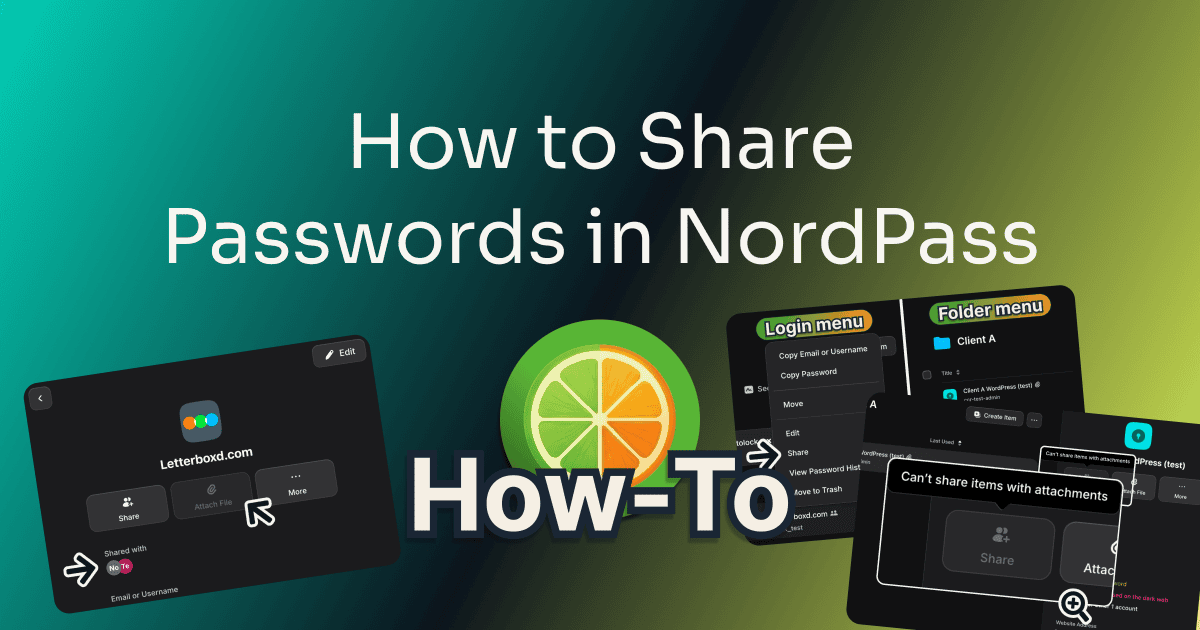
Sharing a password in NordPass sends one login from your vault to another person’s NordPass account. I tested both sides, sending the login on NordPass Premium and opening it on a free account.
Table of Contents
This post has no active affiliate links yet.
Before You Start
| Tool | NordPass |
| Time to complete | About 1 minute |
| Difficulty | Very easy |
| Plan required | Premium or Family to send a share |
You need:
- A login with no file attached.
- The other person’s own NordPass account, in the same data center as yours (US or EU, by NordPass’s help pages, read October 2026). A free account is enough.
I tested every step on NordPass Premium in Chrome; Business and Enterprise can also share whole folders, which this guide doesn’t cover.
By the end, someone else can use your login without you pasting the password into an email or a chat.
Premium or Family
How to Share Passwords in NordPass: Step by Step
Follow along:
Step 1: Open the Login You Want to Share
Open your vault and click the login. Three buttons appear under its name, “Share” among them.
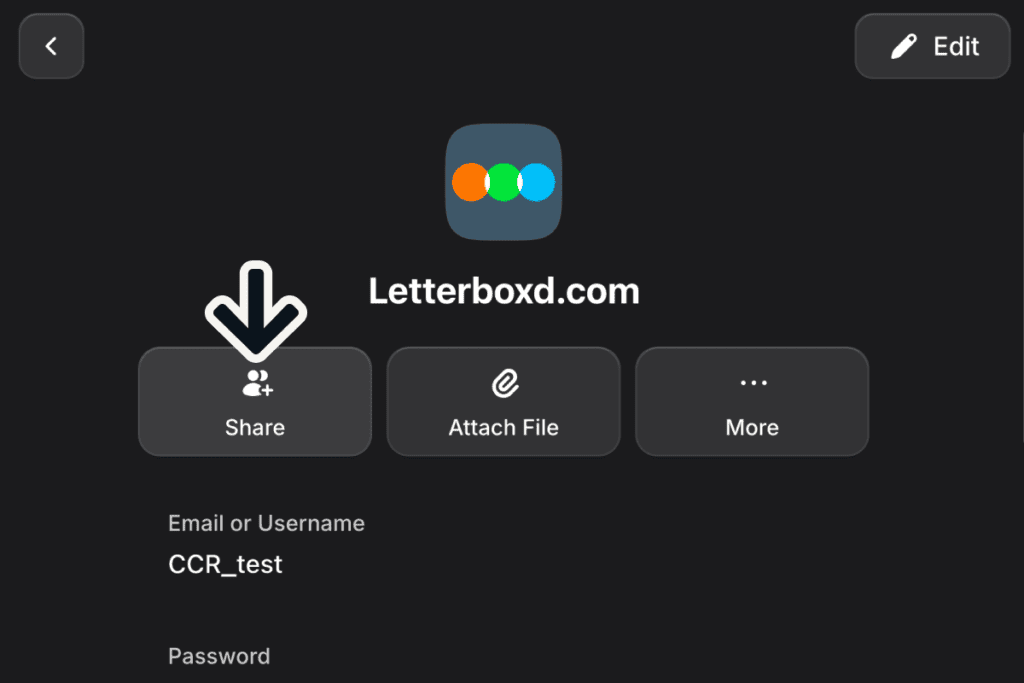
Step 2: Click Share and Type the Email
Click “Share”. In the window that opens, type the person’s email in the “Share with” box.
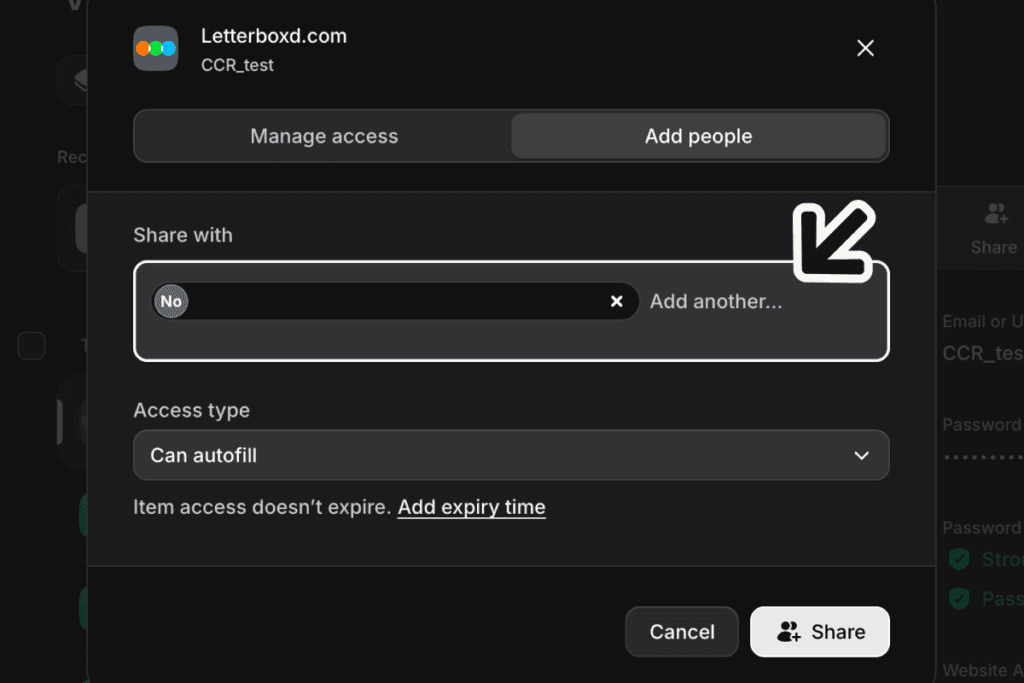
To send several logins at once, tick them in the vault list first, then click the “Share” icon on the bar that appears.
Step 3: Pick an Access Level
Open the “Access type” menu. It starts on “Can autofill”, and NordPass describes each level in the menu:
| Access level | What NordPass’s menu says |
|---|---|
| Can edit | “Person can edit this item and share editing access” |
| Can share | “Person can share this item with others and view its details” |
| Can view | “Person can view this item’s details” |
| Can autofill | “Person can autofill this item” (the default) |
On “Can autofill”, my test person couldn’t reveal or copy the password: both buttons said “You don’t have permission for this action”. On “Can view”, they could see it and copy it.
Step 4: Add an Expiry, Then Click Share
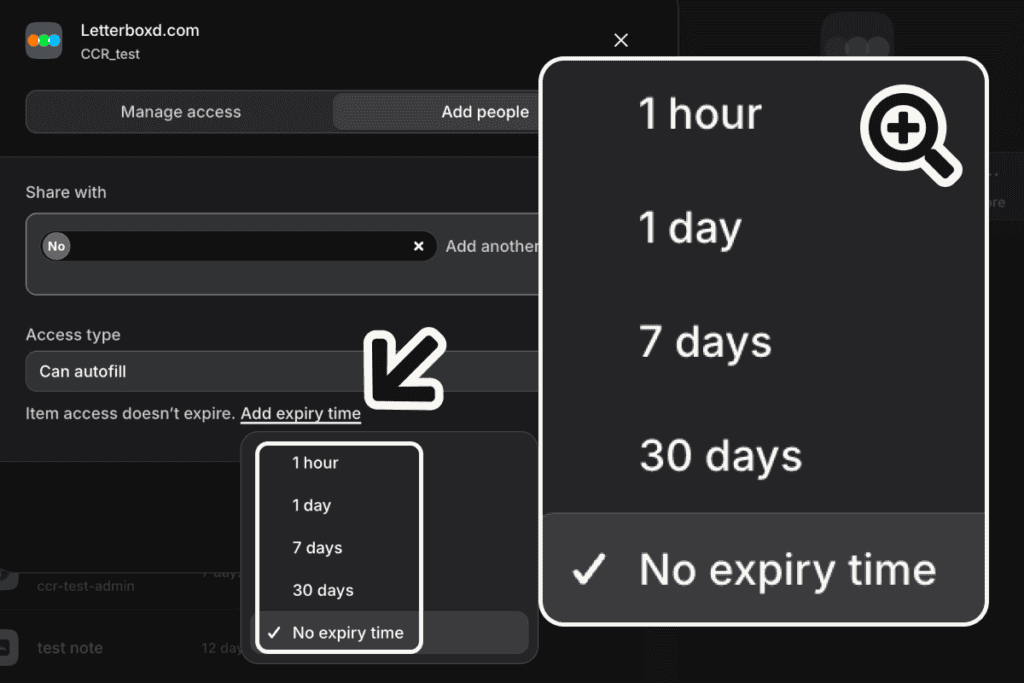
Click “Add expiry time” under the menu (plain underlined text, easy to miss) and pick from “1 hour” to “30 days”. Then click “Share”.
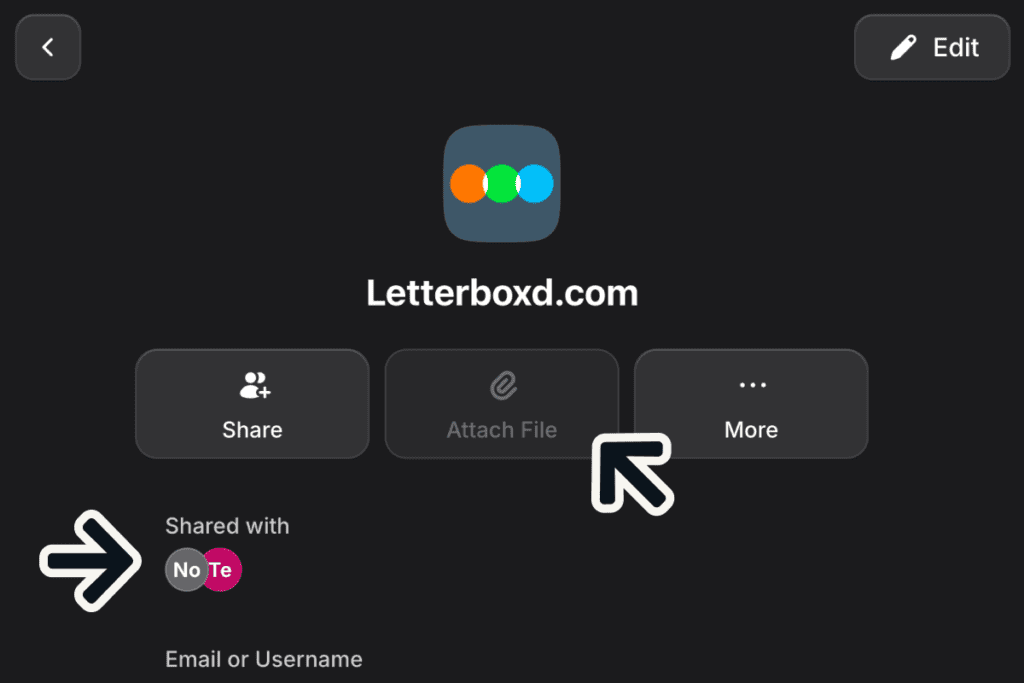
The login now shows a “Shared with” row, and “Attach File” turns gray, because a shared login can’t hold a file.
Step 5: Have Them Accept It
NordPass emails the other person at once. In their vault, the login waits under “Shared Items” as “Pending” until they open it and click “Accept”.
Step 6: Change the Access or Take It Back
Open the login and click the arrow beside “Shared with”. As in the picture, click the person’s access menu (1), then “Remove” (2), and confirm with “Remove”. The login leaves their “Shared Items” at once, with nothing for them to click.
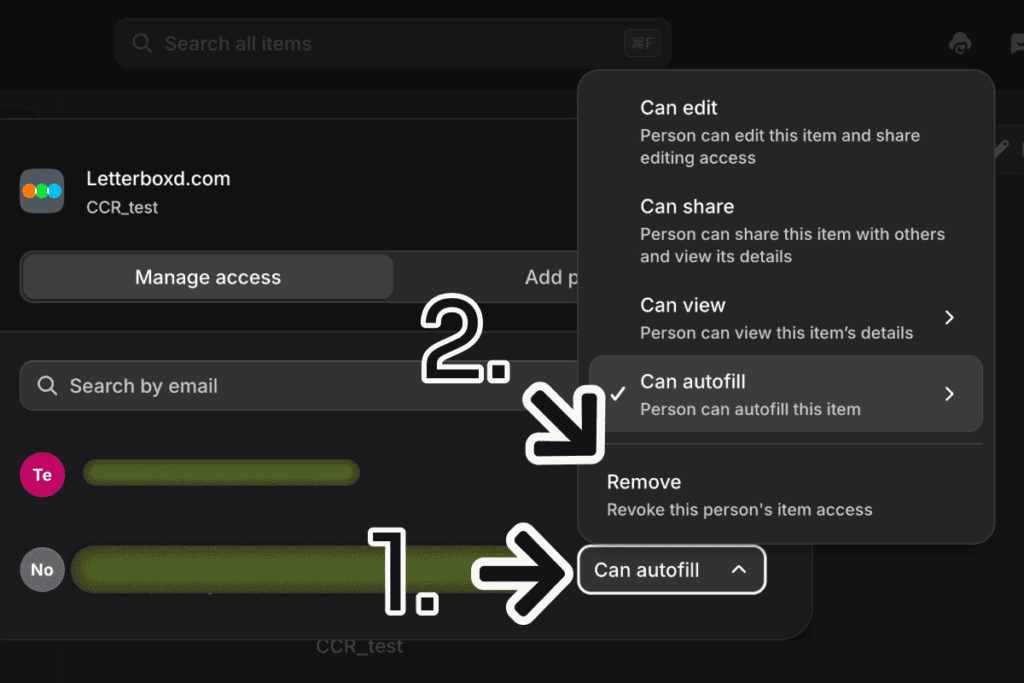
To change their access instead, pick another level in the same menu. It changes at once.
Confident?
Tips to Get Better Results
Ask the person to make their NordPass account first, then share.
Give clients “Can autofill”, never “Can edit” or “Can share”. Those two let them change the password or pass the login on.
Share only when you must, and never a password meant to stay secret for good. When the job ends, remove the person and change the password, because anyone who saw it can still use it.
Common Mistakes to Avoid
Counting on the Expiry Alone
The expiry works if they accept in time: my 1-hour share was gone from their vault by the next morning. After it ended, my own copy of the login was missing until I clicked the sync button at the top right. A share accepted after its end time kept working until I removed it (step 6).
Trying to Share a Whole Folder
On Premium, a folder’s “…” menu holds only “Rename” and “Delete”. Tick the logins in the vault list instead (step 2), or use each login’s own “…” menu, which has “Share”.

Sharing a Login That Has a File Attached
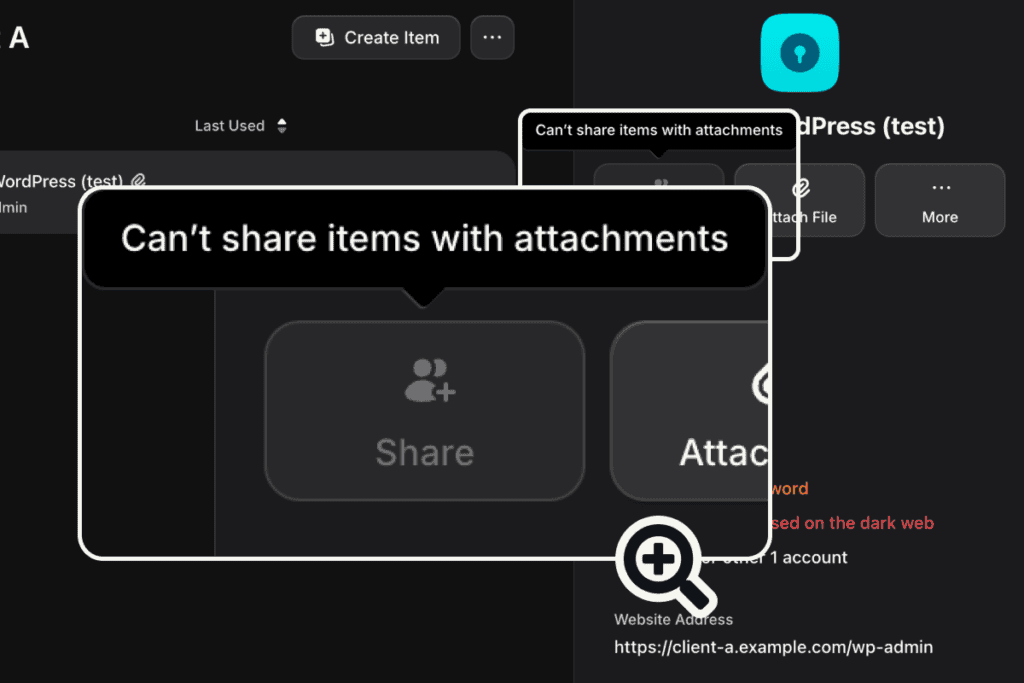
Its “Share” button stays gray, and hovering over it shows “Can’t share items with attachments”. Remove the file first, then share.
Frequently Asked Questions
Can I share passwords on NordPass for free?
No, sending needs NordPass Premium or Family; a free account can only receive. On NordPass’s US plans page and checkout, read September and October 2026, Premium costs $23.88 for the first year and then $35.88 a year for one person, and Family costs $44.28 for the first year and then $71.88 a year for six people. Prices vary by region, so check the current rate before you buy.
How do I share passwords with family in NordPass?
The same way as with anyone (steps 1 to 4). Each family member needs their own NordPass account; I didn’t test the Family plan itself.
How do I add a family member in NordPass?
NordPass’s Family plan article, read October 2026, says the owner copies an invitation link from the NordPass section of Nord Account and sends it. The member opens it, clicks “Activate Account”, and enters their email. I didn’t test it, because my account has Premium, not Family.
Can I share a folder or a whole vault in NordPass?
Not on the personal plans; NordPass’s help pages keep Shared Folders for its Business and Enterprise plans. You share logins instead, one at a time or several at once (step 2). Proton Pass let me share a whole vault on its free plan.
Does the person I share with need a NordPass account?
Yes, and a free one is enough. If your client won’t make one, Proton Pass Plus shares by a link they open without an account; I tested it.
Final Thoughts
You can now share a NordPass login and take it back in four clicks, though sending needs Premium or Family. Pick “Can autofill” for clients, and when the job ends, remove them and change the password.
For what the free plan and Premium each do, read my NordPass review.
Evidence verified: October 2026.

By Jonas Moons, founder & reviewer
I test every tool on Clear-Cut Reviews myself. No ghostwriters, no faceless team. If a tool falls short, I say so, even when it earns me nothing.