Adobe Express vs Canva 2026: The Free Plan That Removes Backgrounds
Two design tools built on templates for people who aren’t designers, put side by side for freelancers and small business owners.
Bottom line: Adobe Express wins with the more capable free plan and the cheaper paid plan, and Canva is the pick only when free brand colors matter more to you than the rest.
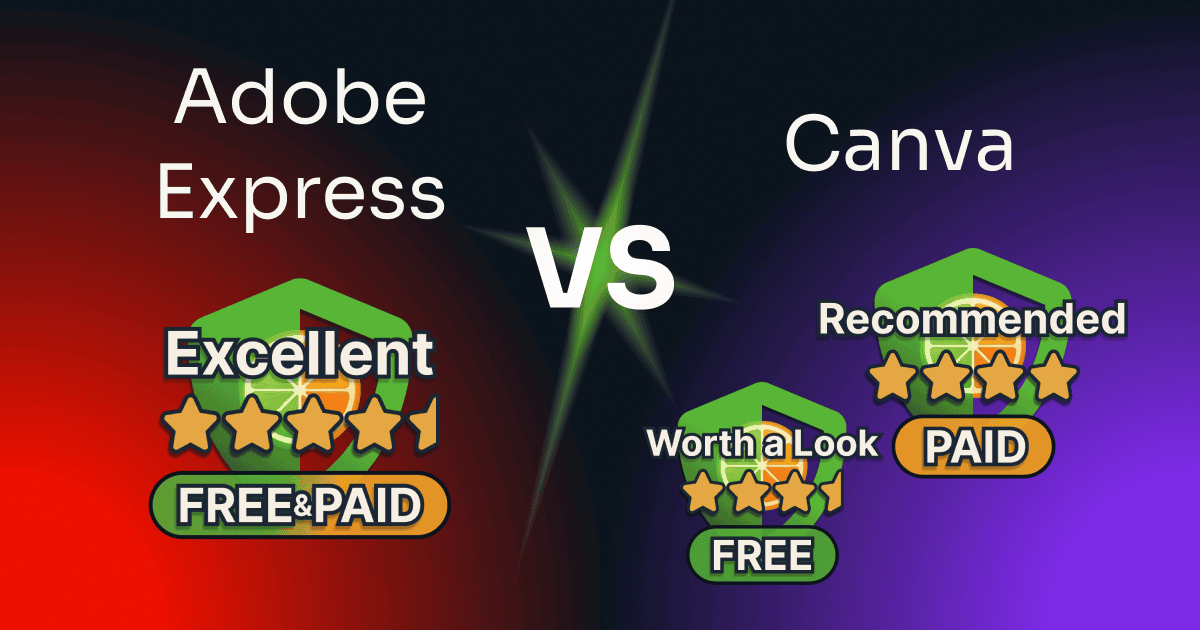
This Adobe Express vs Canva comparison judges each one twice, on what it does for nothing and on what you get by upgrading, because that’s the choice you face. I signed up to both at no cost, hit every wall I could find, then bought both upgrades and tested what each one adds.
Table of Contents
This post has no active affiliate links yet. No affiliate program can change my scores.
Quick Verdict
Overall winner: Adobe Express
FREE
🏆 Adobe Express
Overall:
4.5 / 5
FREE
Canva
Overall:
3.5 / 5
Premium
🏆 Adobe Express
at $9.99/mo
Overall:
4.5 / 5
Pro
Canva
at $18/mo or $144/year
Overall:
4 / 5
Adobe Express wins on:
- Free: background removal and transparent PNG export
- Premium: the cheaper plan, whether you pay monthly or yearly
- Premium: a one-click Resize that rearranges the design for you
Canva wins on:
- Free: three brand colors that apply to your designs
- Free: charts and tables for business documents
- A much bigger template library
Neither will: resize a finished design without paying
What Are Adobe Express and Canva?
Adobe Express is Adobe’s browser and mobile design tool. You get templates, Firefly AI built into the canvas, and a row of quick edits (background removal, file conversion, QR codes) that work on a file without opening a design.
Canva is a browser design platform. Templates and drag-and-drop editing sit at the core, and the same account reaches into docs, websites, social scheduling, and print.
Pricing
Both free plans are permanent; Adobe’s pricing page offers Premium with a 30-day free trial, and Canva Pro’s trial was 30 days when I tested. Trial terms can change and can differ by region, so read each vendor’s current terms before you subscribe.
| Adobe Express | Canva | Winner | |
|---|---|---|---|
| Paid plan, monthly | $9.99 (Premium) | $18 (Pro) | Adobe Express |
| Cost for a year | $119.88, paying monthly | $144 on its yearly plan | Adobe Express |
Adobe costs less over a year, though only just if you’d pay Canva yearly. Month to month it’s about $96 a year less, and Canva’s yearly plan narrows the gap to roughly $24. Adobe sells no annual plan in the US, so its year is twelve monthly payments, and it still comes out cheaper.
Adobe’s US pricing page also lists a second paid plan, Adobe Firefly Pro at $19.99 a month with a 7-day trial, badged “Best value”. It adds far more AI credits and full Photoshop on the web and on mobile; Premium is the plan compared here.
Prices in USD, read on each vendor’s US pricing page (Canva’s on 9 October 2026, Adobe’s on 3 October 2026) and never converted. They vary by region.
How I Tested Adobe Express and Canva
I tested Adobe Express and Canva by hand on four accounts, two per tool. On Adobe Express I used a paid Premium account and a separate free one; on Canva, a paid Pro account and a separate free one with no Pro and no trial running.
The hands-on testing ran in July and August 2026, on my computer, support included, on all four accounts. Wherever I could, I gave both tools the same job, such as the same AI prompt, the same video clip, or the same resize.
Three things I did not test, besides the team plans below: Adobe’s desktop Creative Cloud apps, because this is a browser-to-browser comparison; Adobe Firefly Pro, the pricier Adobe plan above; and the far end of either support route. I decided not to open a case with no real question behind it, because that wastes a support agent’s time.
| What I measured | Adobe Express | Canva | Plan |
|---|---|---|---|
| Background removal on a portrait | clean cutout on the first pass | upgrade prompt before it runs | Free |
| AI images, same prompt, that kept all three fruits | 2 of 4 | 4 of 4 | Free |
| AI images, same prompt, that showed the man I asked for | 1 of 4 (two showed children) | 4 of 4 | Free |
| Brand colors a free user can apply to a design | none (Brands is locked) | 3 | Free |
| Transparent PNG export | Free | ||
| Instagram post 1080×1350 resized to a Story 1080×1920 | 3 layouts offered, one nudge needed | canvas changed, content realigned by hand, about a minute | Premium and Pro |
| The assistant, asked whether a person is reachable | Premium: offered an advisor; Free: not without an active plan | yes, with a “Contact Support” card, on both plans | Free, Premium, and Pro |
Adobe Express vs Canva: The Scores
A free plan and a paid plan are different products, so each gets its own score, free against free and paid against paid.
Both comparisons are of the plans one person buys for themselves. Each tool also sells team plans with an admin console, shared brand controls, and approvals, and neither is tested or scored here. Canva’s is Canva Business; Adobe sells Express for teams, and its business page and its pricing page give two different prices for it.
Free vs free: Adobe Express, clearly
FREE
🏆 Adobe Express
Overall:
4.5 / 5
4.5 / 5
Ease of use
5 / 5
Value
3.5 / 5
Features
4.5 / 5
Support
FREE
Canva
Overall:
3.5 / 5
3 / 5
Ease of use
4 / 5
Value
3 / 5
Features
4 / 5
Support
Adobe Express Free’s Features score sits a full point under its 4.5, for a brand it builds but won’t apply, a resize it won’t run, and AI that drops parts of a brief. It’s still the more capable free plan of the two, because its cutouts and transparent PNGs are free, and Canva charges for both.
Canva Free scores 3.5, a full point under Adobe, and most of the points it loses are walls: background removal and transparent PNG export are paid, a finished design can’t be resized, and some walls appear only after you’ve done the work. It stands out on brand colors, with three that a free user can apply to every design.
Paid vs paid: Adobe Express, by a clear step
Premium
🏆 Adobe Express
Overall:
4.5 / 5
4.5 / 5
Ease of use
5 / 5
Value
4 / 5
Features
5 / 5
Support
Pro
Canva
Overall:
4 / 5
4.5 / 5
Ease of use
4 / 5
Value
3.5 / 5
Features
4.5 / 5
Support
Most of what Adobe Premium loses is a video cutout that erased half a laptop and AI that skips parts of a brief. It costs less monthly or yearly, its Resize does more of the work, and a paying user can reach help more easily, so it still wins, 4.5 against 4, with 18.5 points against 16.5, leading on three of the four criteria, level with Canva on ease of use.
Canva Pro loses most of its points to a Magic Resize that only changes the frame, a video cutout that leaves moving scraps of background, and the higher price. It can’t close a two-point gap, but it holds its own on the range of its library.
Source: Adobe’s business and pricing pages, read October 2026.
Want to try them side by side?
Where Each Free Plan Stops
Both free plans give away a lot, though not the same things, and for most people that decides it.
Free on Adobe
Pro on Canva
Background Removal (Winner: Adobe Express)
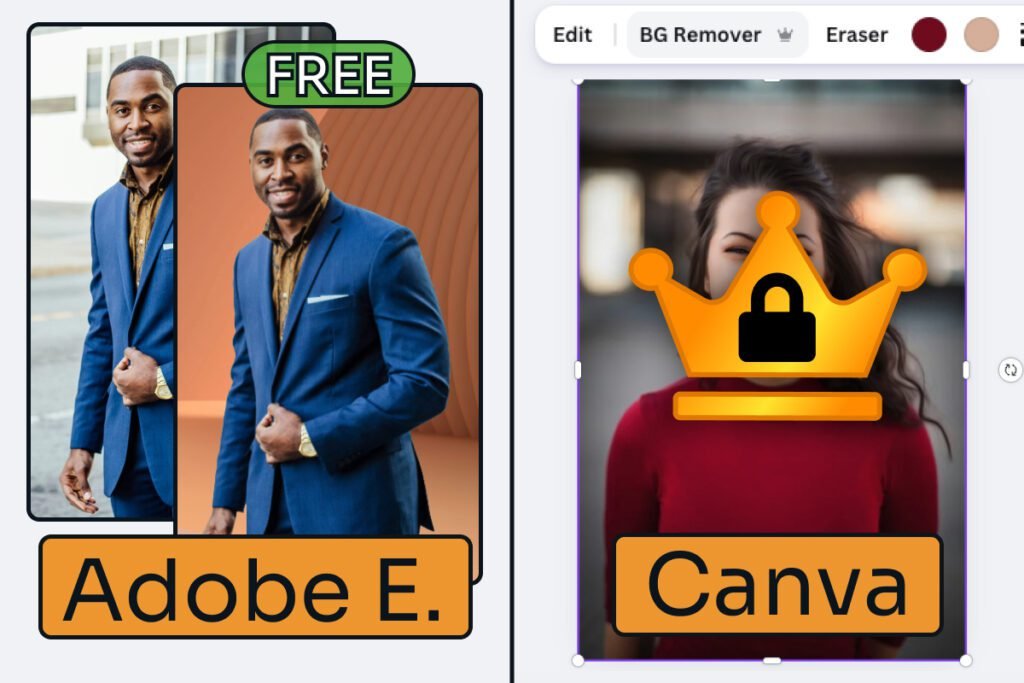
Adobe Express: free, and it works. It’s a quick edit, so you feed it a file straight from the homepage without opening a design. A street portrait cut out cleanly on the first attempt, with crisp edges along the jacket and collar, and the gap between a raised arm and the body cleared rather than filled in.
Canva: Pro only, blocked before it runs. The BG Remover button carries a crown, and clicking it raises the upgrade prompt straight away. No preview, no trial run, nothing to judge.
Winner: Adobe Express, because it cuts out a background for nothing, a job anyone selling a product or posting a headshot does every week, while Canva won’t let you try it once.
Part free on both
Brand Assets (Winner: Canva)
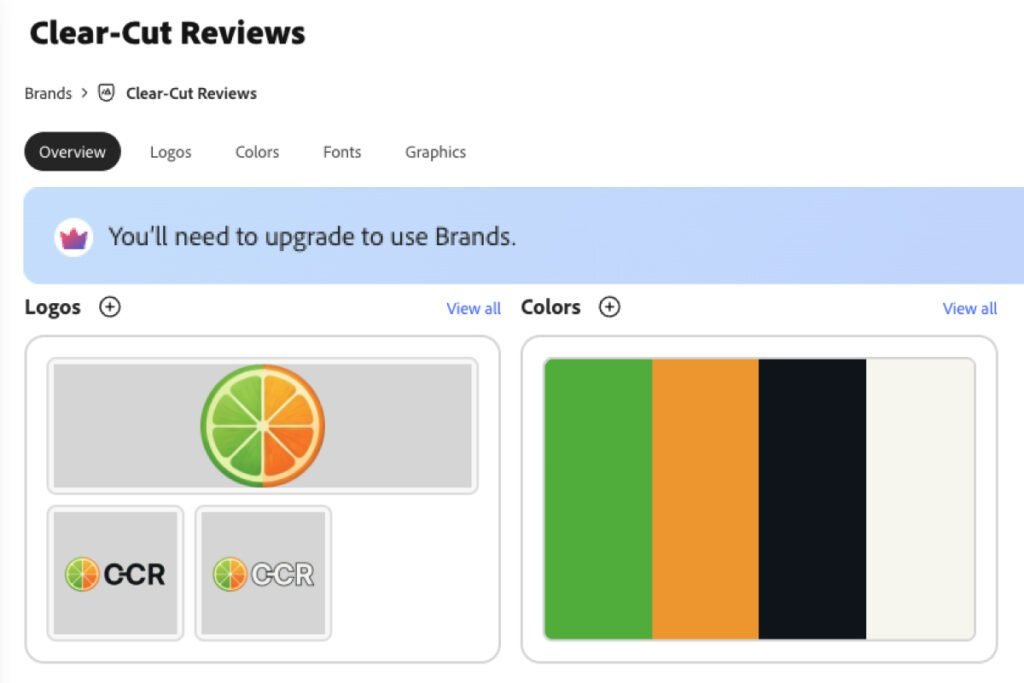
Adobe Express: build everything, apply nothing. Brands stores logos, colors, fonts, and graphics, and setting it up is completely free. At least you know from the start: on the free plan, a banner across the top of the page reads “You’ll need to upgrade to use Brands.”
Canva: three colors, and they work. The free Brand Kit holds three brand colors, which show up in the editor’s color picker under a Brand Kit heading with no paywall in the way. The fourth swatch carries a crown, so a brand with a fourth color means adding it by hand every time, the chore a brand kit exists to remove.
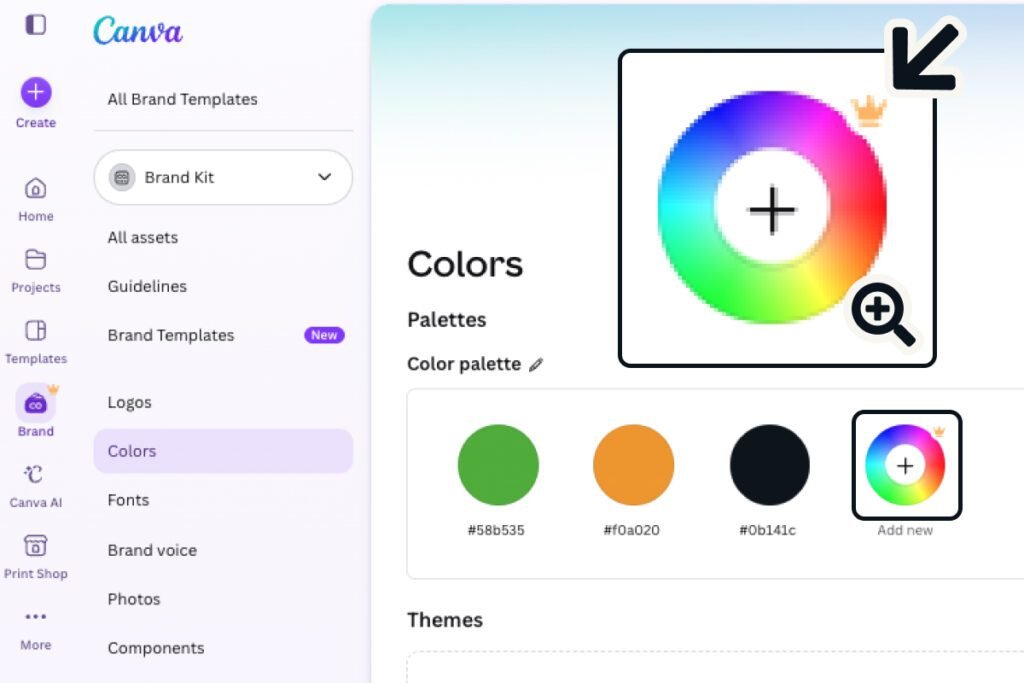
Logos, fonts, and the other tabs are Pro only, so on a free account you still drag your logo in from Uploads every time.
Winner: Canva, because three usable colors beat a complete kit you can’t use.
Paid on both
Resizing a Design (Winner: Nobody)
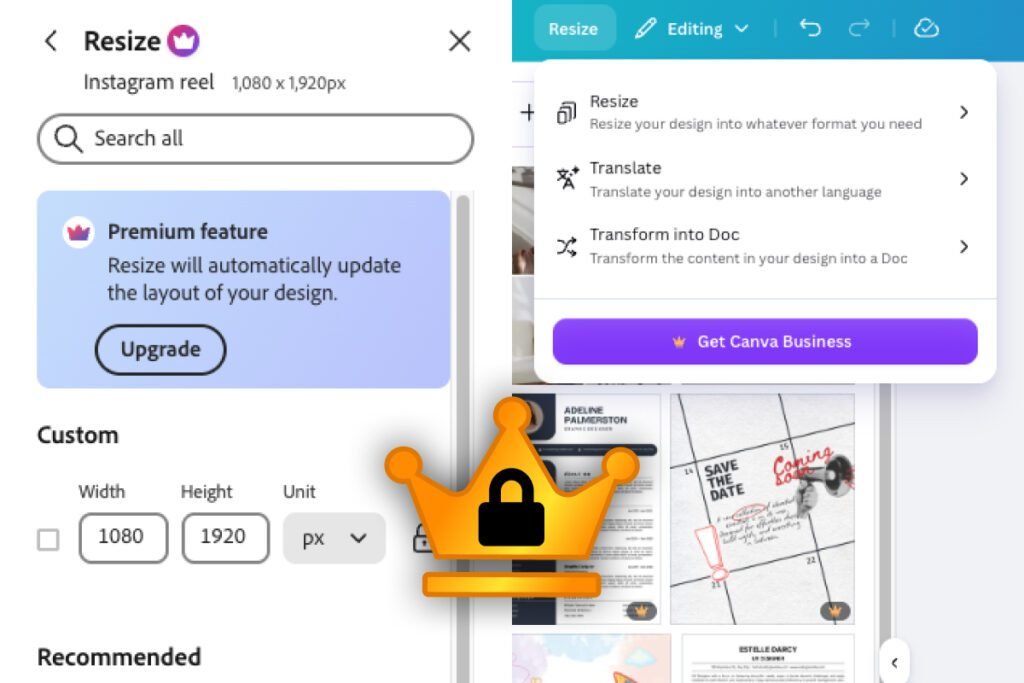
Adobe Express: blocked after you type the size. Adobe lets you type a custom width and height into fields that look usable. Enter them, apply, and the paywall appears with nothing changed.
Canva: blocked at the format picker. Canva shows you the whole resize panel, with search, suggested formats, exact sizes, and categories for print, social, and video. You can pick Instagram Story and see that it’s 1080 × 1920, and then both buttons read “Get Canva Business” (free plan).
Winner: nobody, because both free plans block it, which surprised me, and the only way around it on either is to note the size the tool shows you, start a new design at that size, and rebuild by hand.
Free on both
Exports (Winner: Adobe Express)
Adobe Express: it gives you the file properties. Transparent PNG export is free, and video exports at the source clip’s own resolution, so a 4K clip came out as a 3840 × 2160 MP4 with no watermark on a free account. What Premium adds is the choice to change that resolution.
Canva: it gives you the formats. Seven of its eight file types export free (JPG, PNG, both PDF types, MP4, GIF, and PPTX), with only SVG crowned. Nothing I exported carried a watermark, and PDF Print being free means business cards and flyers can go to a printer without paying.
What you can’t change on Canva’s free plan is how the file comes out, since size, compression, and transparent background are all crowned.
Winner: Adobe Express, on transparent PNG alone, because placing a cutout on a new background is a basic job and Canva charges for it.
free on both
AI Image Generation (Winner: Canva, with a caveat)
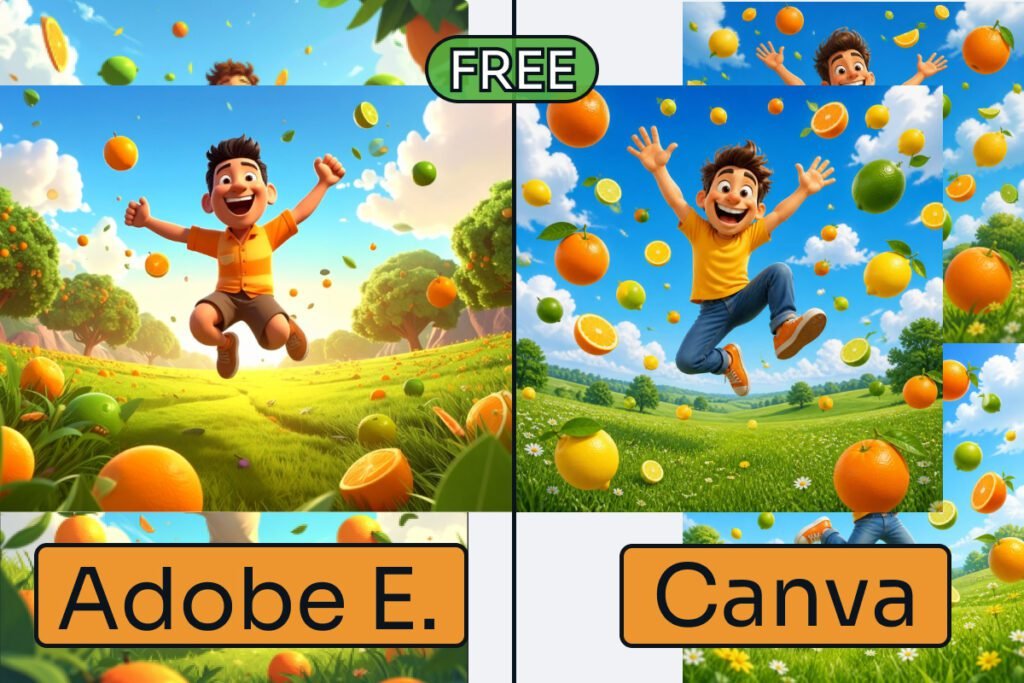
Adobe Express: Firefly dropped parts of the brief. Both free plans turn a text prompt into four images, and I gave both the same brief:
“create a grass field landscape with flying oranges, limes and lemons. With a cartoonish man in the middle jumping in the air with a smile on his face.”
Two of Adobe’s four left out the limes and lemons and filled the sky with oranges, and two showed children, not a man. Adobe’s own plan comparison marks commercial use of Firefly images as allowed on the free and paid plans.
Canva: it followed the brief more closely. All four results had oranges, lemons, and limes, and all four showed a figure that reads as a young man. The images download free with no watermark, though for licensing Canva’s AI panel only links to “See terms” (free plan).
The fruit looks slightly odd up close on both tools. One prompt and one run each is enough to stop calling Adobe the better generator, though too little to call Canva the better one overall.
Winner: Canva, on following the prompt, though Adobe has the clearer terms for client work.
Licensing from Adobe’s plan comparison, read July 2026.
Free on both
Templates (Winner: Split)
Adobe Express: you can hide the ones you can’t use. Its template browser filters by price, and setting it to Free removes every crowned result from the grid. That one filter click keeps you from falling for a design you can’t use.
Canva: far more, and no filter. By both companies’ own counts, Canva’s free library is many times the size of Adobe’s. But Canva has no such filter, so premium templates sit in every row, and the further you scroll, the more of them there are.
Winner: split, with Canva winning on volume and Adobe on not wasting your time.
free on both
Elements and Stock (Winner: Canva)
Adobe Express: a free set of Adobe Stock. The free plan includes Adobe Stock photos, videos, music, and design elements, and Premium opens the paid Adobe Stock collection.
Canva: the business elements are free. Its free element library is generous in exactly the categories a small business needs. Shapes, frames, grids, charts, tables, forms, and mockups are almost all free, and animated elements lean Pro.
Winner: Canva, because on an invoice or a one-pager a chart or table you can use is worth more than another stock photo.
Is free enough for you?
How Each Tool Handles Its Paywalls
After testing both free plans, the moment each tool tells you something is paid turned out to be the clearest difference between them, and it’s what set Canva’s Ease of use score on the free plan.
Adobe warns you before you put in the work. The Brands page shows its upgrade banner before you build anything, and templates filter to free only, so you never fall for a locked design. The video export panel says plainly that changing resolution is a premium feature.
Canva marks its premium content honestly too. Every paid element and template wears a crown, but three things undercut it. You can’t filter crowned templates out, so you have to catch them by eye.
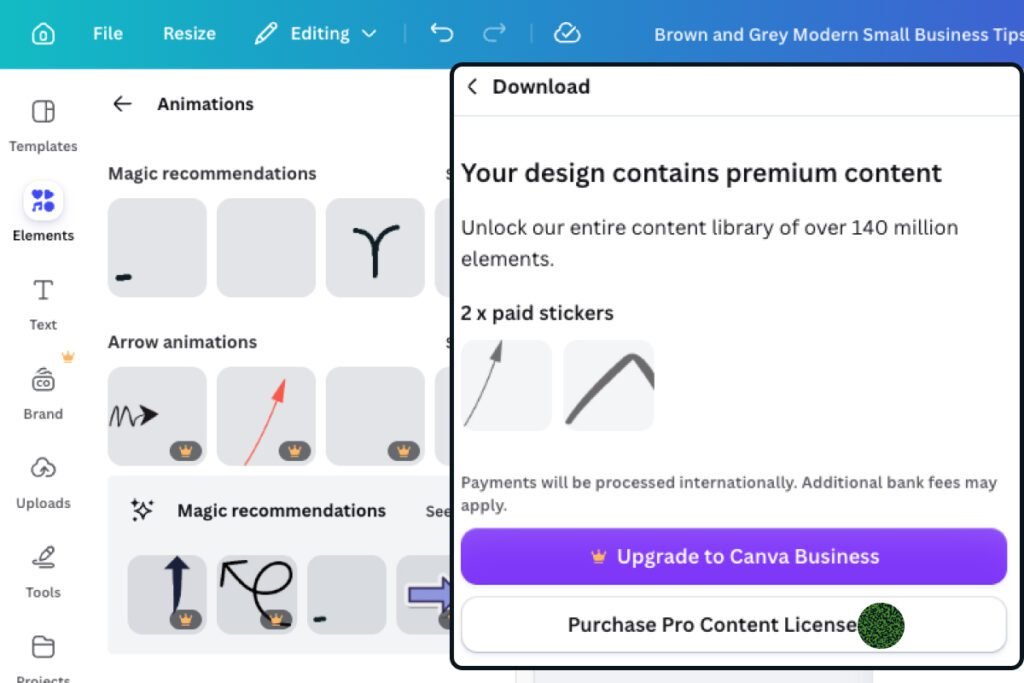
Premium elements only block at download, so you can finish a design before finding out it can’t leave. And every upgrade prompt I hit (the resize wall, the BG Remover, the download blocker) preselects Canva Business, the pricier plan, even where Pro unlocks the feature, so you have to spot the cheaper plan and pick it yourself. Adobe tells you before you start, Canva often after you’ve finished, and finding out late costs you the work in between.
One thing Canva does that’s useful: a blocked download lists exactly what’s premium (“Your design contains premium content”, free plan) and offers a one-off license to unlock that single design instead of subscribing. If you need one graphic with one paid sticker, that’s a real option.
What You Get When You Pay
Paid on both
One-Click Resize vs Magic Resize (Winner: Adobe Express)
Adobe Express: it rebuilds the design. Turning an Instagram post at 1080×1350 into a Story at 1080×1920, it moved everything sensibly on the first try and offered three different layouts to choose from. The only thing that needed a nudge was the website address along the bottom edge.
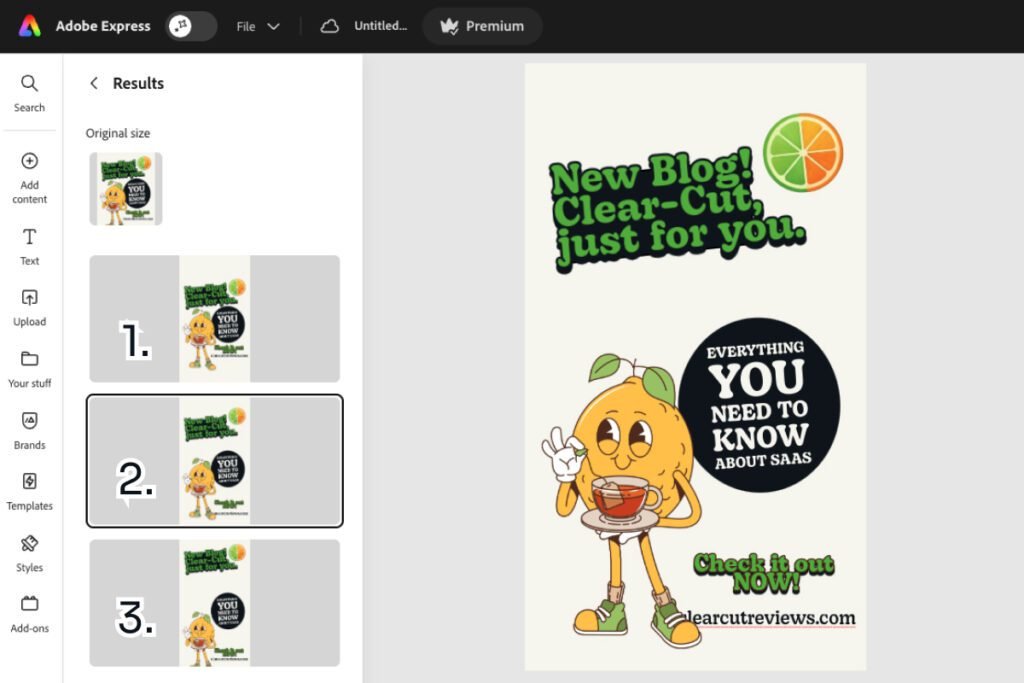
Canva: the frame only. Magic Resize changes the frame and leaves your content where it was, so you realign it by hand every time. Budget about a minute per format.
Winner: Adobe Express, because it rearranges your design to fit the new size while Canva changes only the frame, and that’s the biggest single reason to pick Adobe’s paid plan.
Paid on both
Video Background Removal (Winner: Adobe Express)
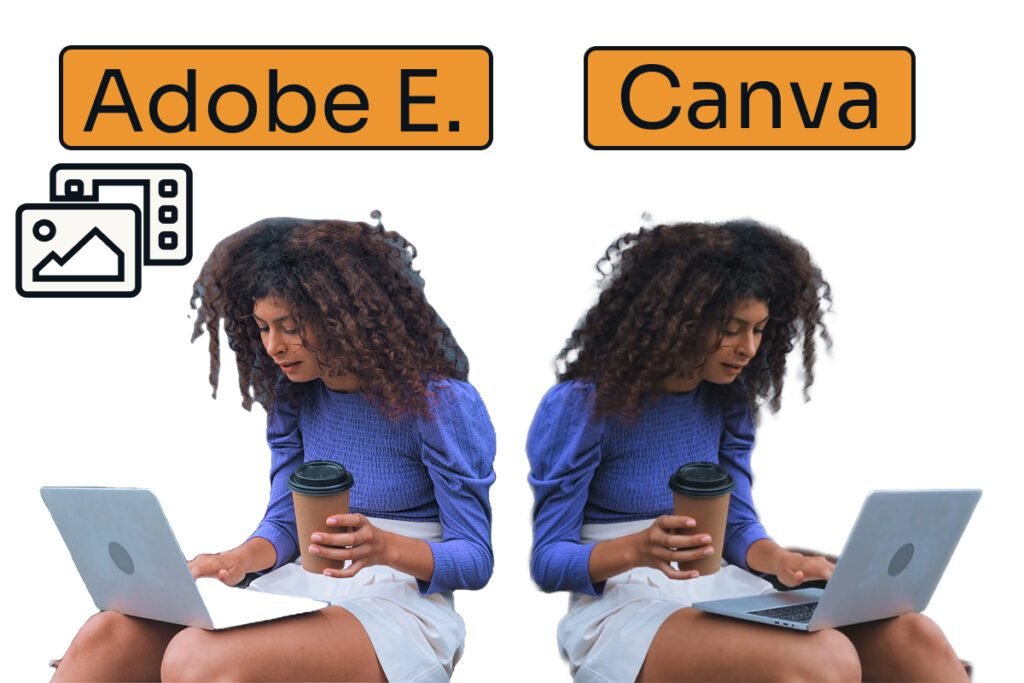
Adobe Express: a precise cut, and one real error. I ran the same clip through both, of a woman with long curly hair, a coffee in one hand, and a laptop on her knees; curly hair on a moving subject is about the hardest thing you can hand a background remover. Adobe’s edges come out sharp and clean, which is also what makes the hair hard for it, since every curl is a hard edge that shifts from frame to frame, and a few slivers of the old background survive between the curls.
It also made one error it shouldn’t have. It erased the bottom half of the laptop, and did it again on a second run, though that half is the same shade as the top half it kept. Both flaws can be fixed, since the missing half crops out of frame and a shape placed behind her covers the slivers.
Canva: a soft cut that leaves scraps. Its edges are blurrier by design, and that handles the hair better than Adobe does. But it leaves scraps of the original background behind, on her hand, her leg, and around her head, and in motion those scraps shift with every frame.
This is the one section where the picture argues with the verdict. Freeze a frame and Canva’s cutout looks nicer, with better hair and softer edges. Play it and it flips, because moving scraps of old background around a moving subject can’t be patched; you’d need a background busy enough to hide them, and you’d still catch the original showing through.
Winner: Adobe Express, for anything you’re publishing, because Adobe’s flaws can be fixed and Canva’s can’t.
Paid on both
Support (Winner: Adobe Express)
Adobe Express: support split by plan, and it says so. Asked whether a real person is reachable, the assistant on Premium offered to connect me to an advisor. On the free account it said it couldn’t find an active plan, and that signing in with one is what unlocks the advisor.
Free users still get a searchable Help Center with a troubleshooting section, Adobe’s tutorials, and an active community where Adobe staff answer questions, answers get marked as solved, and free accounts can post. Eight of the ten newest discussions had replies when I checked, several within two hours, and the two without were minutes old. The one thing Adobe’s free plan lacks is a private route for an account problem, and that’s the half point it loses.
Canva: chat on the plan table, not on the help page. Canva’s plan table lists live chat and tickets on Pro, and on Free “Limited” live chat and tickets for “Select issues”, without saying what either covers. When I tested, signed in on both the Pro and the free account, the help page showed no chat button, no ticket form, and no contact link, and I only reached it by starting to file a complaint before a Help entry appeared in the menu.
Asked for a real person, Canva’s assistant said yes and showed a “Contact Support” card, so by its account a route exists. It also told me “On the Help page, you’ll find options to reach Canva Support, including live chat”, while I was standing on that page and there were none. Canva runs no public community.
Signed out, the Help Center shows a “Need help fast?” card that leads to a Get In Touch page. I no longer have a paid Canva account, so I can’t tell you what a paying user sees there today.
Winner: Adobe Express, on the free and the paid plans, because free users get a community where Adobe staff answer (Canva has none), and paying Adobe got me a named route to a person while paying Canva got me a chat channel its own help page didn’t show.
Source: Canva’s pricing page and Help Center, read October 2026.
Paid on both
Brand Management (Winner: Nobody)
Adobe Express: Apply brand, a rough first pass. Premium unlocks Brands, for one identity used again and again, and Libraries, for assets tied to particular projects, clients, or teams. Its one-click Apply brand repaints a whole design in your colors, but treat it as a rough pass.
On a tea-shop template it swapped a soft cream and brown palette for green, orange, and navy in one go, and the result was loud rather than considered.
Canva: shuffle, the same rough pass. Canva Pro’s Brand Kit palette has a shuffle button for the same work, which moves your brand colors around a template, one press at a time, until the layout lands close. Either paid plan keeps your logos, colors, and fonts ready in the editor, so brand work is quicker on both than on a free plan.
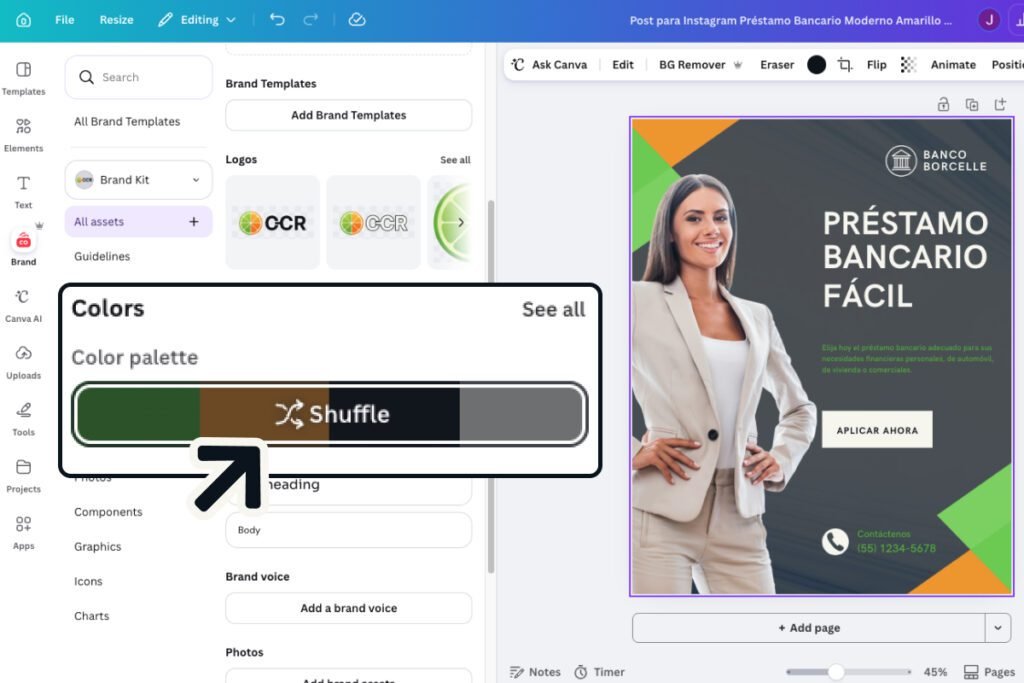
Winner: nobody, because Apply brand and shuffle do the same job and neither finishes it.
Which one fits your work?
Who Should Choose Which
Adobe Express Free or Canva Free?
FREE
Choose Adobe Express Free if:
- You remove backgrounds, convert files, or make QR codes often. These are free and don’t need a canvas.
- You put AI images into paid client work and want clear commercial-use terms.
- You want the most you can do without paying.
Choose Canva Free if:
- You need brand colors on every design and won’t pay.
- You want the biggest template library and don’t mind crowns in the results.
- You build invoices and one-pagers, where Canva’s free charts and tables are stronger.
Adobe Express Premium or Canva Pro?
PREMIUM
PRO
Choose Adobe Express Premium if:
- You want the cheaper paid plan, or you resize one design into several formats every week.
- You publish video with the background cut out, where Adobe’s flaws are the ones you can fix.
- You want the assistant to offer you an advisor when something goes wrong with your account.
Choose Canva Pro if:
- You want Canva’s full paid library, from editable video templates to animation on any element.
- You already work well in Canva and don’t mind realigning a resized design by hand.
Final Verdict
Adobe Express is better than Canva on both the free and the paid plans.
On the free plans, Adobe cuts out backgrounds and saves transparent PNGs, and Canva needs Pro for both. Those are weekly jobs for a freelancer.
On the paid plans Adobe wins by half a point, 4.5 against 4. It costs less whichever way you pay, its one-click Resize is the best version of that feature I’ve tested, and help was easier to reach. Canva’s live chat looked like the counterweight until I went looking for it on a paying account and couldn’t find it.
Canva’s clearest win is brand consistency on the free plan. If three colors that apply to every design solve your daily problem, that one difference may outweigh the rest.
If you’re starting fresh, start with Adobe Express free, and if the Brands wall bothers you, Premium lifts it.
For the full detail on either tool, see the Adobe Express review and the Canva Pro review. For free alternatives to both, my Best Canva Alternatives guide ranks four tested tools.
Frequently Asked Questions
Is Adobe Express better than Canva?
Yes, on both the free and the paid plans. Adobe scores 4.5 against Canva’s 3.5 on the free plans, mainly because background removal and transparent PNG export are free on Adobe and paid on Canva, and 4.5 against 4 on the paid plans, with Adobe ahead on price, resize, and support. Canva’s case rests on free brand colors that apply, a bigger library, and its free business-document elements.
Which has the better free plan, Adobe Express or Canva?
Adobe Express. Its free plan removes backgrounds, exports transparent PNGs, and exported my 4K clip at 4K with no watermark; Canva charges for the first two. Canva’s free plan gives you three working brand colors and a much bigger template library, which matters if brand consistency is your everyday problem.
Is Adobe Express cheaper than Canva?
Yes, whichever way you pay Canva. Adobe Express Premium is $9.99/month against Canva Pro at $18/month, about $96 a year less. Canva’s yearly plan at $144 narrows the gap to roughly $24, and Adobe, which sells no annual plan in the US, still costs $119.88 a year paying monthly (prices in USD, read October 2026; they vary by region).
Can I resize a design for free in Adobe Express or Canva?
No, in neither. Both free plans block resizing a finished design, Adobe after letting you type custom sizes and Canva at the format picker, so the workaround on both is to note the size you need and rebuild in a new design. On the paid plans Adobe’s Resize is the better of the two, because it rearranges your content and offers three layouts instead of only changing the canvas.
Which is better for AI images, Adobe Express or Canva?
Canva follows a prompt more closely, and Adobe Express has the clearer terms for client work, which count for more. Given the same detailed prompt, every Canva result showed what I asked for, while Adobe’s Firefly dropped parts of the brief. Adobe’s plan comparison (read July 2026) allows commercial use of Firefly images on free and paid plans, while Canva’s AI panel only links to its terms.
Should I switch from Canva to Adobe Express?
Only for a specific reason. If you pay for Canva Pro mainly for background removal, Adobe gives it away free, and if you use AI images commercially, Adobe’s terms are clearer. If neither applies and Canva works for you, switching costs a learning curve for a modest gain.
Evidence verified: August 2026.

By Jonas Moons, founder & reviewer
I test every tool on Clear-Cut Reviews myself. No ghostwriters, no faceless team. If a tool falls short, I say so, even when it earns me nothing.