Canva Pro Review 2026: Cutouts and Brand Tools Free Can’t Match
Canva Pro is the plan one person buys for Canva’s design tool. It adds background removal, resizing, transparent PNGs, and five full Brand Kits to the free plan, for freelancers and small businesses who brand their own graphics.
Bottom line: Worth it if you create branded content weekly. If you make a few graphics a month and never need a background removed, Free still covers you.
I paid for Pro and used it on my own work, including the designs for this site, with a free account beside it so I could see exactly where Free stops. Below is what it costs, how it scores, and what the Canva Pro features did with my own files.
Table of Contents
This post has no active affiliate links yet. No affiliate program can change my scores.
Quick Verdict
PRO
Total Score:
4 / 5
Pricing: $18/mo or $144/year
(30-day free trial)
Pros:
- Brand Kit stores logos, colors, fonts once
- Magic Resize reuses one design across formats
- Background Remover handles hair without manual brushing
Cons:
- Generative AI is hit-or-miss on hard jobs
- Magic Resize needs manual realignment every time
Best for:
- Freelancers managing branding across multiple clients
- Small business owners posting social content regularly
- Non-designers who need templates to start from
Not for:
- Anyone upgrading mainly for AI-made designs
- Occasional designers making a few graphics monthly (Free is enough)
What Is Canva Pro?
Canva is a browser-based design tool from Sydney for social graphics, presentations, business cards, short video, and print. Canva Pro is the plan one person buys for themselves. The free plan is good, which makes the upgrade a hard call.
How Much Does Canva Pro Cost?
Canva’s pricing starts with a free plan that has no time limit: a three-color Brand Kit and clean exports in seven of eight file types, Canva’s PDF Print included, with no watermark. It won’t remove a background, export a transparent PNG, or resize a finished design, and those three walls are most of what Pro sells. Premium elements are crowned while you browse, but nothing warns you when you add one, so a finished design can stop at the download with “Your design contains premium content”.
| Features | Free | Pro | Business |
|---|---|---|---|
| Price | $0 | $18/month or $144/year | $25/month or $250/year per person |
| Cloud Storage | 5 GB | 100 GB | 500 GB |
| Brand Kits | 1 (3 colors only, no logos or fonts) | 5 (full) | 100 (full) |
| AI allowance ² | Up to 20 uses | 10× Free | 20× Free |
| Pro design tools ¹ | |||
| Team management (members, roles, approvals) ³ | |||
| Live chat support | Limited | ||
| Print discount | 10% |
¹ Pro design tools
- Background Remover (photo and video)
- Magic Resize
- Transparent PNG export
- Print-ready CMYK export
- Premium templates and stock library
- The Magic Studio editing tools (Magic Eraser, Magic Edit, Magic Expand, Magic Grab, Magic Morph, Magic Animate)
- Social Content Planner
- Brand Templates
- Premium Apps
² A shared monthly allowance for generative AI, with a paid AI Pass if you run out; what that means in practice is under The AI Allowance below.
³ Working together isn’t paywalled. Real-time editing, comments, assigning tasks, and link sharing work on Free and Pro, and Business adds running a team (invited members, roles, approvals, brand controls, and team-only links).
On the Canva Pro plan, $144 a year works out to $12 a month, against $216 in fees paid month to month, so the annual plan saves $72 once you’re sure the tool sticks.
If you work alone, pick Pro, not Business. All three paywalls I hit on Free (resize, background removal, premium elements at download) pushed Canva Business, with buttons reading “Get Canva Business” or “Upgrade to Canva Business” and Business preselected in the resize and background-removal boxes. Pro unlocks all three. For one premium element in one design, the download blocker also offers “Purchase Pro Content License”, a one-off payment instead of a subscription.
Prices in USD from Canva’s US pricing page, read 9 October 2026. They vary by region and Canva runs promotions often, so check the current rate before you commit.
Interested?
How I Tested Canva Pro
I tested Canva Pro on my own paid account, and the free plan on a separate account with no Pro and no trial, so the crowns showed up where a free user meets them.
The hands-on testing ran in July and August 2026, on my computer.
I didn’t test Magic Edit, Magic Expand, or Magic Grab, because the jobs I tested didn’t call for them, and I didn’t test Canva’s team plans, because this review covers the plan one person buys. Nothing here is a first-hand claim about them. I also didn’t follow Canva’s “Contact Support” card through to an agent, because opening a support case without a real question wastes an agent’s time.
| What I measured | Result | Plan |
|---|---|---|
| Setting up a full Brand Kit (2 logos, 4 colors, fonts) | under 2 minutes | Pro |
| Brand colors the free Brand Kit holds | 3 (the fourth slot is crowned) | Free |
| Realigning a resized design, Instagram post 1080×1350 to Story 1080×1920 | about 1 minute per format | Pro |
| Still photos cut out with no refinement brush | 3 of 3 | Pro |
| Export file types open on the free plan | 7 of 8 (SVG is crowned) | Free |
| Free-plan paywalls that pushed Business, though Pro unlocks the feature | 3 of 3 | Free |
| Chat button, ticket form, or contact link on the signed-in Help page | none, on either plan | Free and Pro |
Is Canva Pro Worth It? Score Breakdown
Every score in this section is for Canva Pro. The free plan scores 3.5 out of 5, mostly because of the three walls in the pricing section above.
Canva Business, the team plan in the pricing table above, is a different product and isn’t scored here.
PRO
Overall:
4 / 5
Uneven AI, a resize you finish by hand, a video cutout I wouldn’t publish, a higher price than its closest rival, and support that was hard to find cost it a point. For weekly branded work, it still pays its way.
4.5 / 5
Ease of use
The Help page only showed in the navigation after I started filing a complaint. Paying removes the crowns, and with them most of Free’s friction.
4 / 5
Value
The price went up while AI became metered, and Adobe Express Premium does comparable work for less, whether you pay Canva monthly or yearly (see my Adobe Express review). In return, Pro opened every paywall I hit on Free.
3.5 / 5
Features
Generative AI is uneven on harder jobs, Magic Resize leaves your content where it was, and video background removal leaves moving scraps behind. The Brand Kit, still-photo cutouts, templates, and exports all deliver.
4.5 / 5
Support
The half point goes because nothing on the Help page showed how to reach the live chat Pro pays for. Ask Canva’s assistant, though, and it says a person is reachable and offers a “Contact Support” card.
Canva’s plan table lists live chat and tickets on Pro, and on Free “Limited” live chat and tickets for “Select issues”, without saying what either covers. When I tested, signed in on both plans, the help page was identical, with search, topic cards, courses, and an AI assistant but no chat button, ticket form, or contact link. Asked whether I could chat with a real person, the assistant said yes, showed a card reading “Find ways to reach Support”, and added, “On the Help page, you’ll find options to reach Canva Support, including live chat.” I was on the Help page. They weren’t there. Signed out, the Help Center now shows a “Need help fast?” card that leads to a Get In Touch page, but I no longer have Pro, so I can’t say what a paying user sees. Canva runs no public community, unlike Adobe’s searchable forum.
Source: Canva’s pricing page and Help Center, read October 2026.
Branding something every week?
Key Features of Canva Pro
Where a screenshot would have shown a client’s file, I recreated the step with my own content. No screenshot uses Canva’s tutorial assets.
Pro only
Premium Templates and Stock Library: A Real Step Up from Free
Canva Pro’s template and stock library is the change you feel first. On Free, crowned templates sit in every row with no filter to hide them, and the further you scroll the fewer you can use. On Pro the range runs from business cards, flyers, and resumes to AI avatars built from one photo and video templates where you can swap and animate any element.
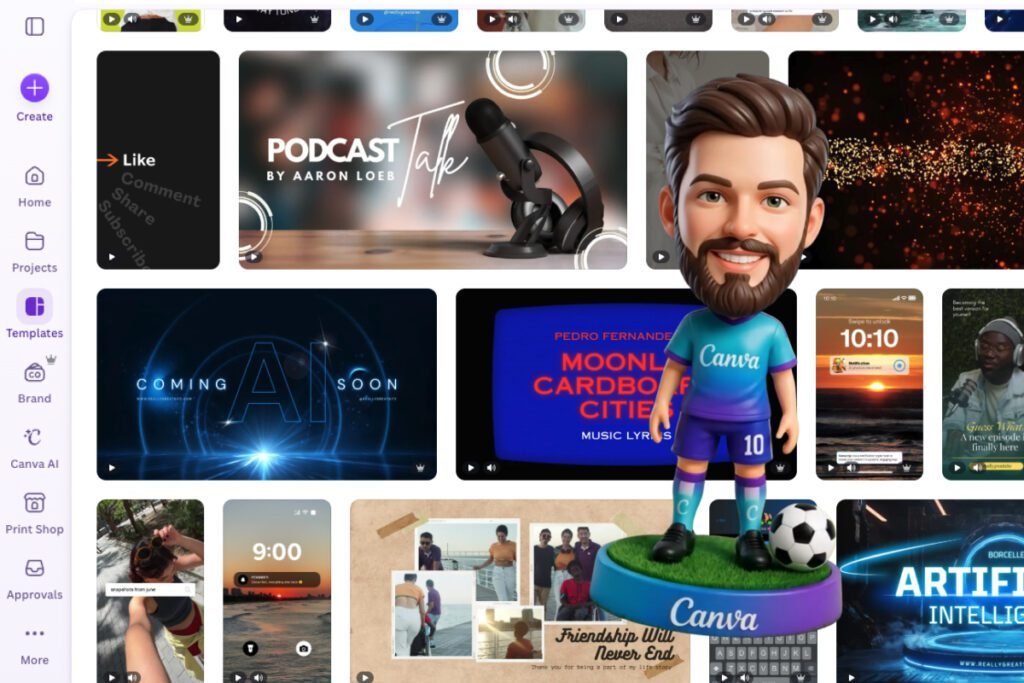
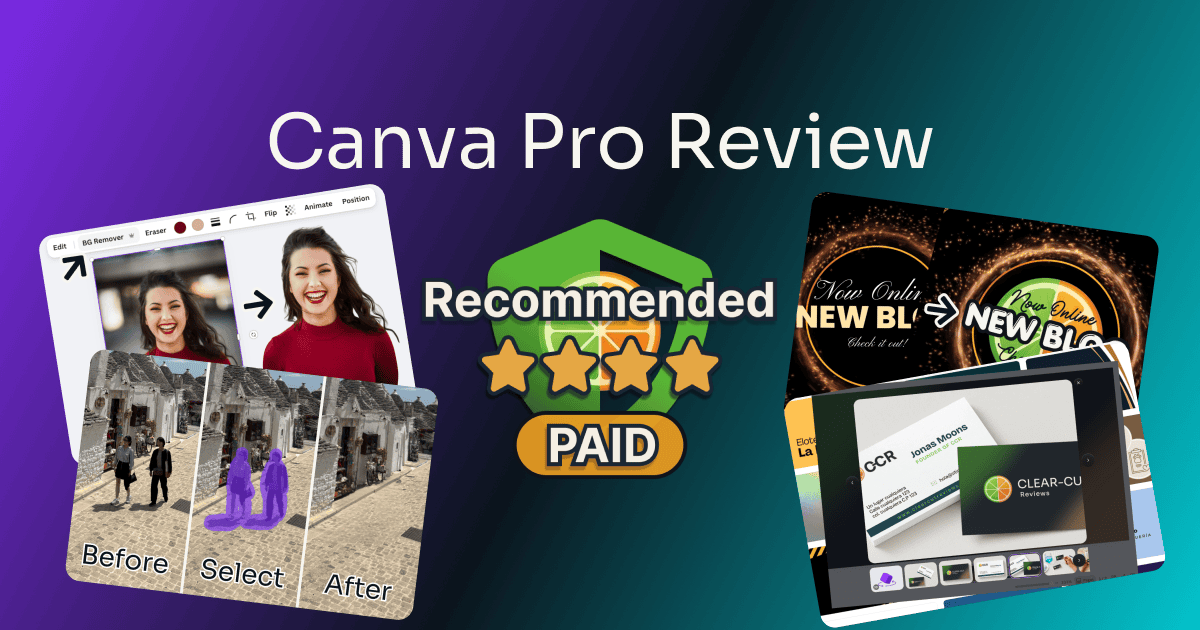
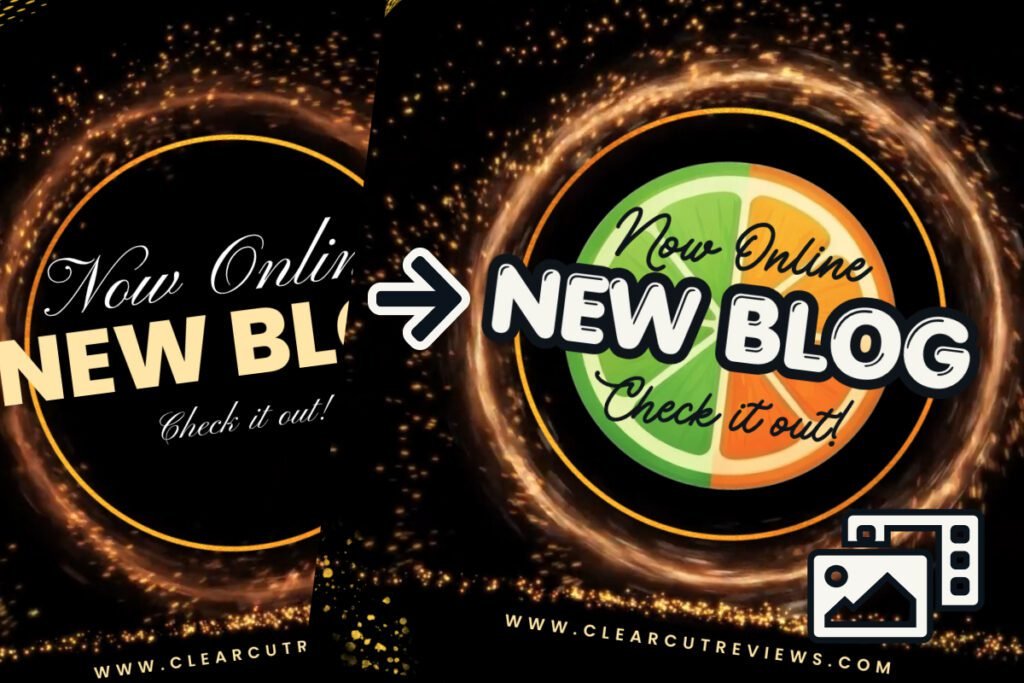
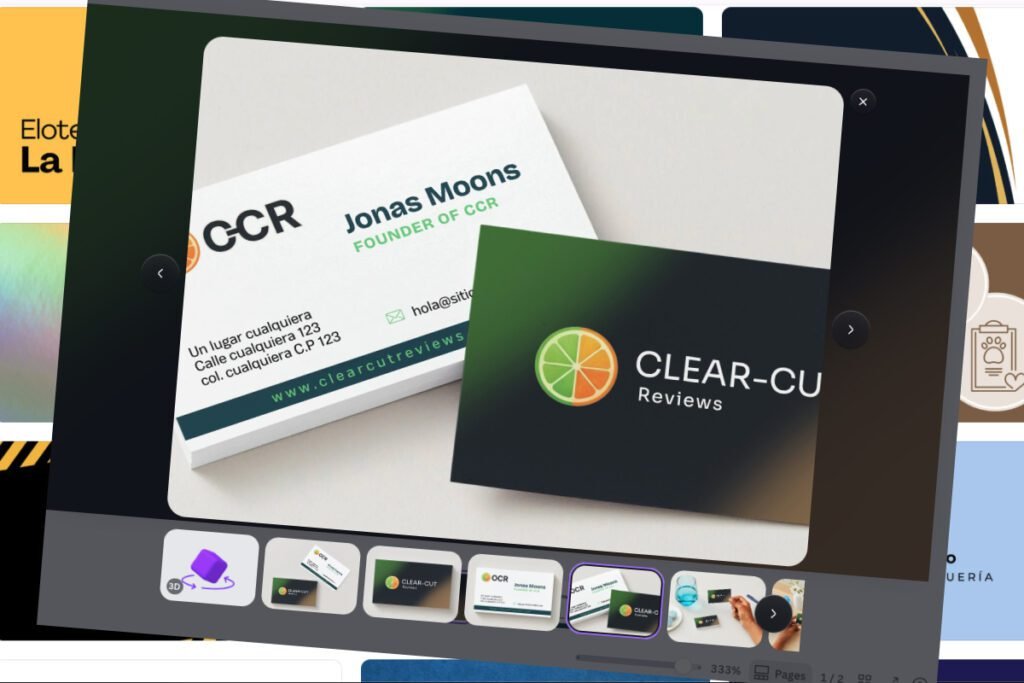
I branded two Pro templates. A business card took the CCR logo and details, with a realistic print preview, front and back. A video template took new text, the logo, and a few font and color changes in about two minutes. It wasn’t polished, but it was clearly mine.
Canva Print is a separate paid service that prints and ships the finished card. Against other online card printers it landed mid-range, with prices that vary by region, paper, and quantity.
Part free
Part Pro
Brand Kit: Free Already Works; Pro Gives You Five
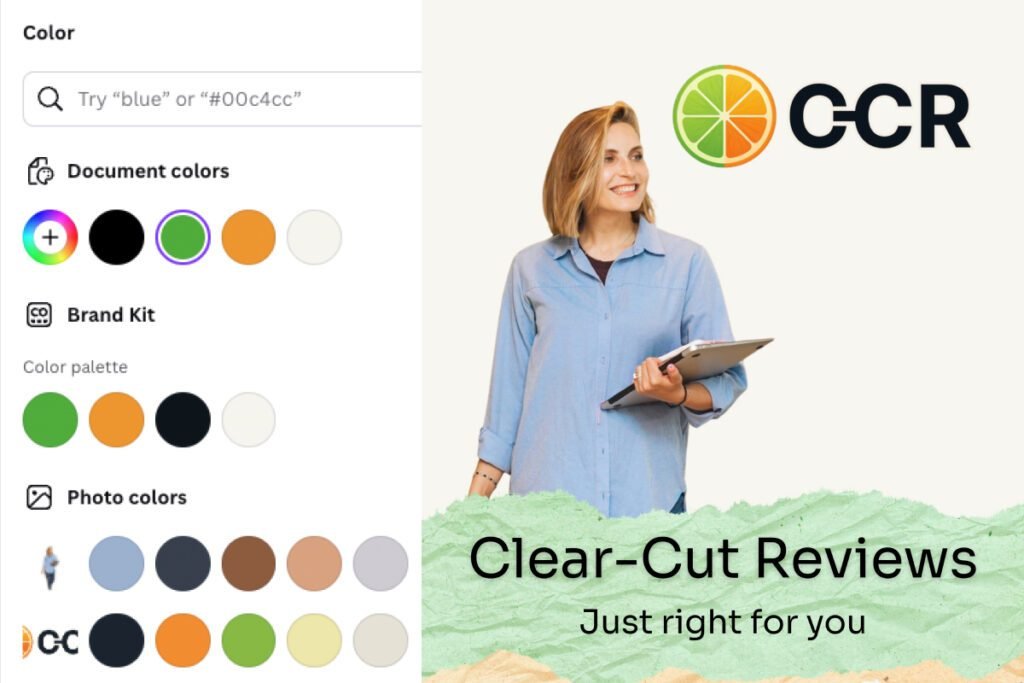
Canva Free gives you one Brand Kit with three brand colors, and they really apply, right in the editor’s color picker. The fourth swatch wears a crown, and logos, fonts, and brand voice are Pro-only, so on Free you drag your logo in from Uploads each time. One drag isn’t a real obstacle. Three colors is: this site runs four, so the fourth went in by hand on every design.
Pro gives you up to five full kits, enough for a small client roster. Setting one up took me under two minutes (two logos, four colors, my fonts), with my hex codes ready.
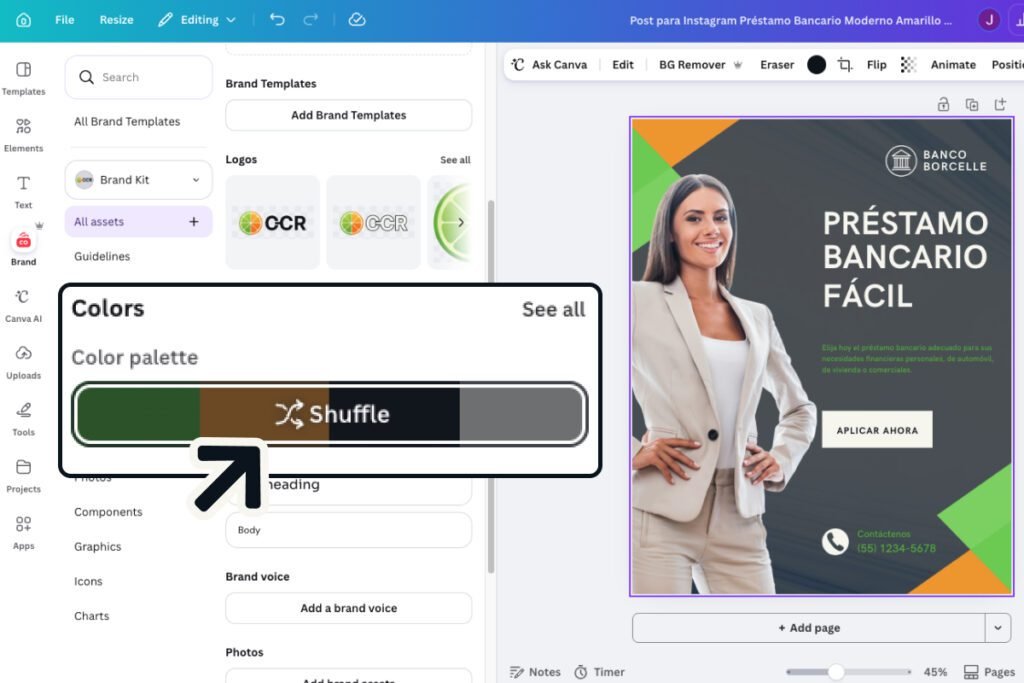
Shuffle is the most useful thing I found in Pro that Canva’s marketing doesn’t mention. The button on the Brand Kit palette reassigns your brand colors across a template. The first result is rarely right, but it’s one click, so you keep pressing until it lands close and fix the rest by hand.
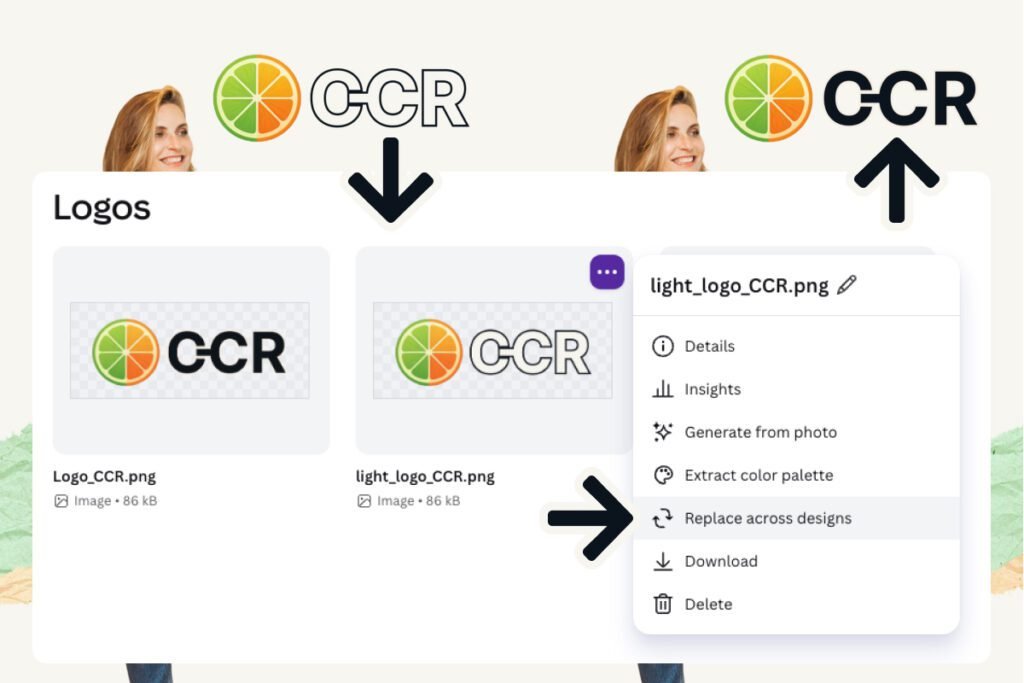
Replace across designs is the automatic win. Swap a logo in the Brand Kit, and every design using it updates at once.
Nothing brands a template for you, though. You change each element by hand, and no template switches to your brand fonts on its own. What the kit saves is re-entry, and across a week of designs that adds up.
Pro only
Magic Resize: A Real Shortcut With a Manual Step
On Canva Free you can’t resize a finished design at all. You can browse the Resize panel and pick a format, but then both buttons read “Get Canva Business”, so the free route is a rebuild. On Pro, click Resize and pick from a searchable list covering Instagram, TikTok, Facebook, LinkedIn, and more.
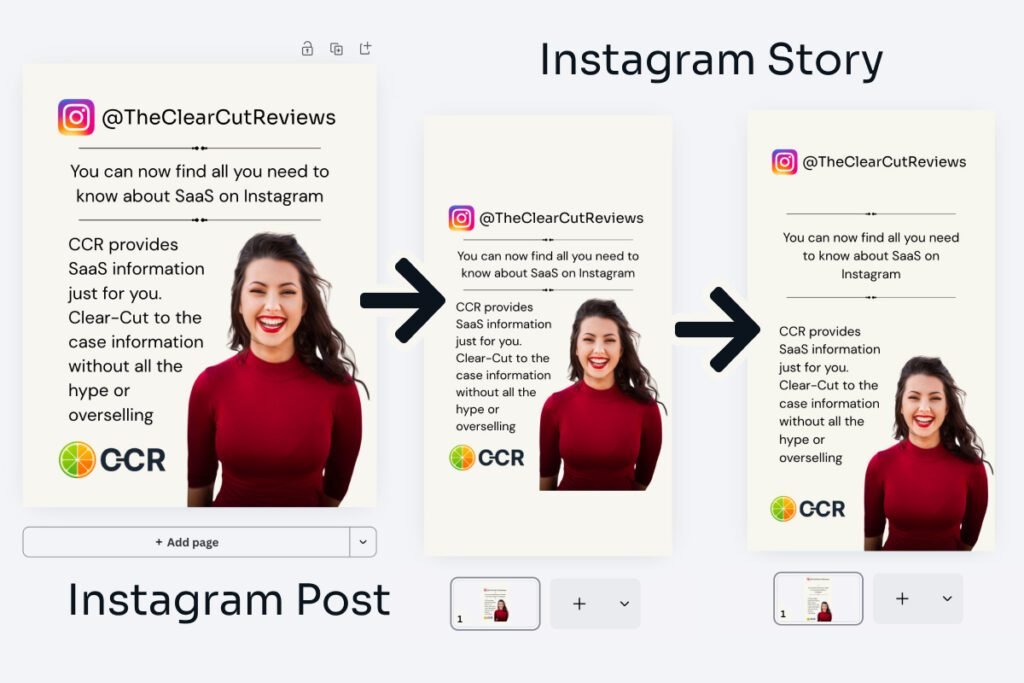
Resize changes the frame and nothing else. An Instagram post at 1080×1350 became a Story at 1080×1920 instantly, but the content stayed put, and I spent about a minute moving it into the taller canvas. Budget that minute for every format.
Pro only
Background Remover: Replaces a Separate Subscription
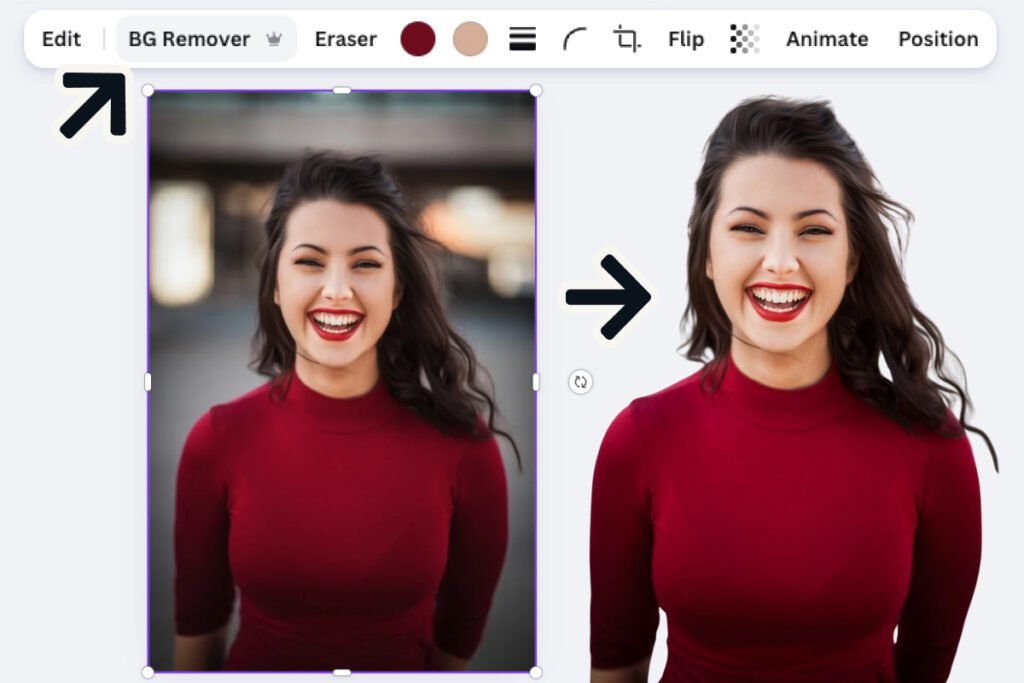
On Canva Free the BG Remover button wears a crown and stops you on the first click. On Pro, select an image, click BG Remover, and the subject lands on a transparent layer in seconds, with no separate remover subscription and no one to pay for cutouts.
I picked three subjects that break most removers and never needed a refinement brush. A laughing headshot with long, wavy hair came out clean on the first pass, the edges a touch softer than Adobe Express’s and still sharp enough for client work.
A full-length portrait down an office corridor, glass and clutter behind her, came out with no halo, the gap between her arm and her body included. So did a teapot with a slim handle, a thin spout, and awkward shadows. Export it as a transparent PNG (below), or the cutout saves on white.

Pro only
Video Background Removal: Good Hair, Leftover Scraps
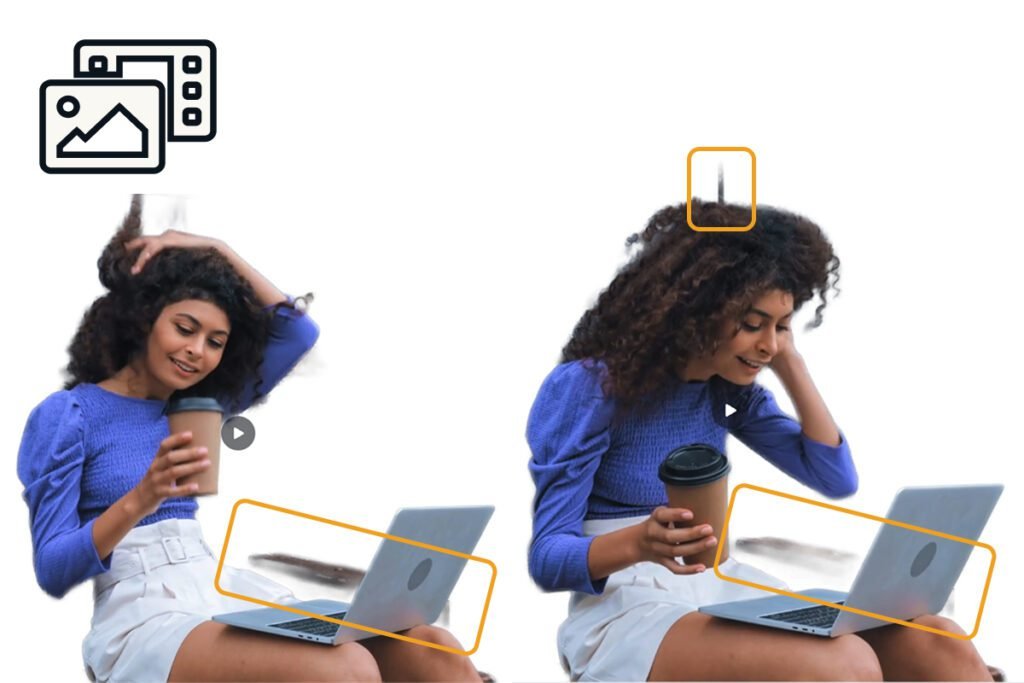
Canva Pro removes backgrounds from video too. My hardest clip showed a woman with long curly hair, a coffee in one hand, and a laptop on her knees, moving throughout. Canva cuts with soft edges, and on those curls it did better than Adobe Express on the identical clip.
Scraps of the original background survived around her hand, her leg, and her head, and because she moves, they shift with every frame. A single frame looks good. In motion I wouldn’t publish it, because you can’t patch something that moves. In Canva’s defense, curly hair on a moving person is the worst case for any remover, and a still subject against a plain wall would very likely come out clean.
Part free
Part Pro
Magic Studio (AI Tools): Strong on Simple Jobs, Rough on Hard Ones
Magic Studio, Canva’s AI suite, is the most heavily marketed part of the upgrade. Its editing tools (Magic Eraser, Magic Edit, Magic Expand, Magic Grab) are Pro-only; on Free, Magic Eraser and Magic Edit stop you on the first click, though a manual Pixel Eraser stays free. Magic Write and text-to-image run on Free too.
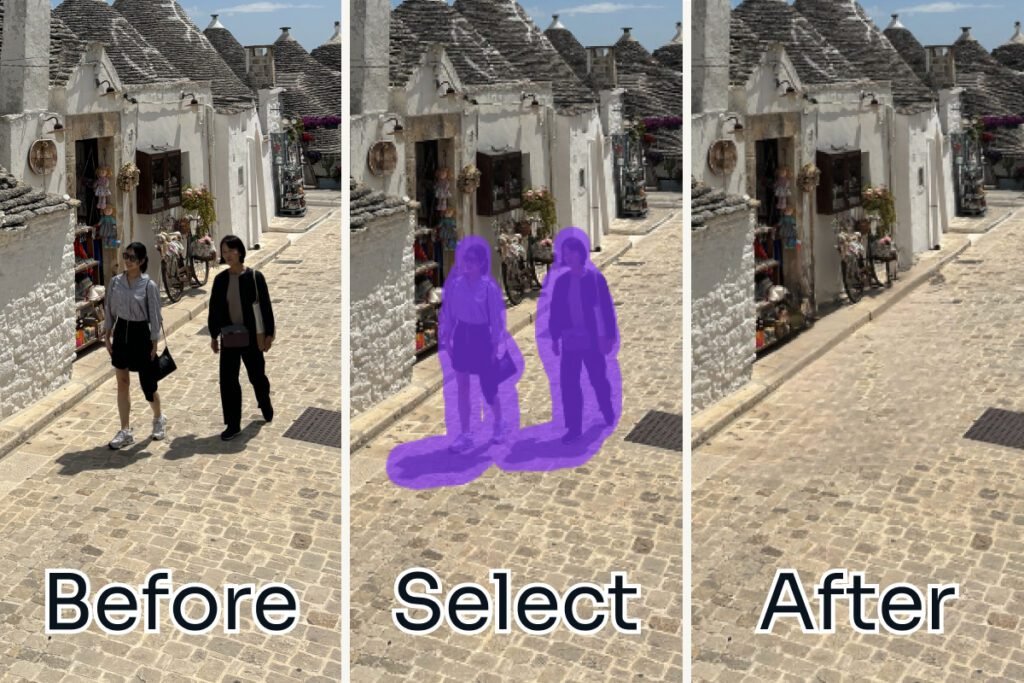
Magic Eraser was the standout, taking two people out of a vacation street scene in one pass with no trace left. On a detailed office it left a faint blurred patch where a chair had stood. It’s usable, but you can see it.
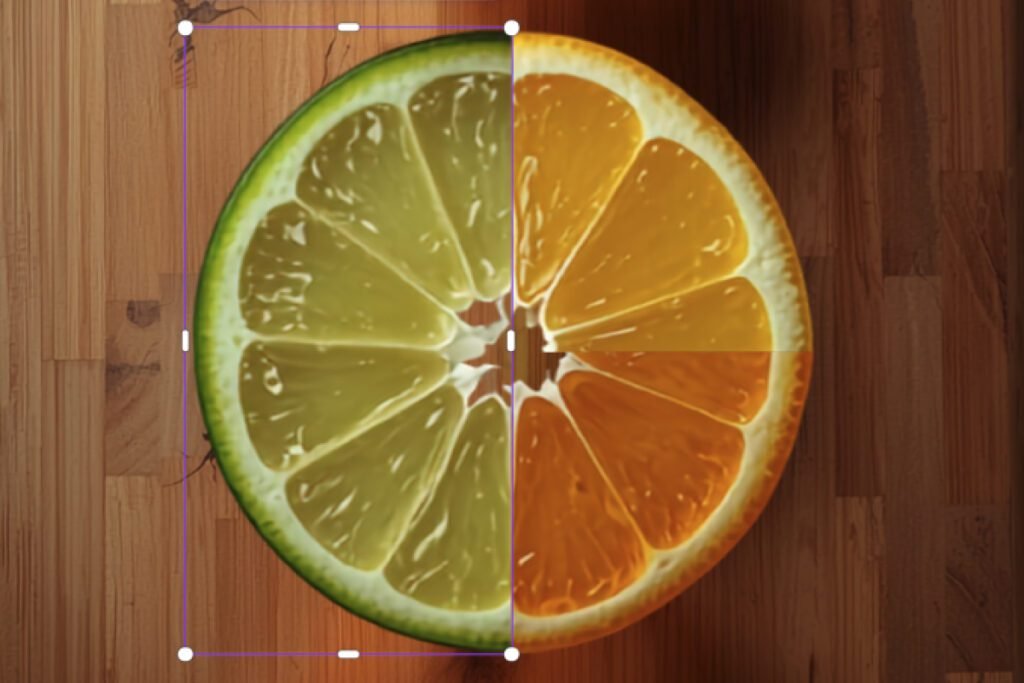
Text-to-image couldn’t reproduce the CCR logo. It returned a semi-realistic citrus with visible seams, which I dragged, resized, and cropped into something usable. Fine for rough imagery, no good for an exact brand mark.
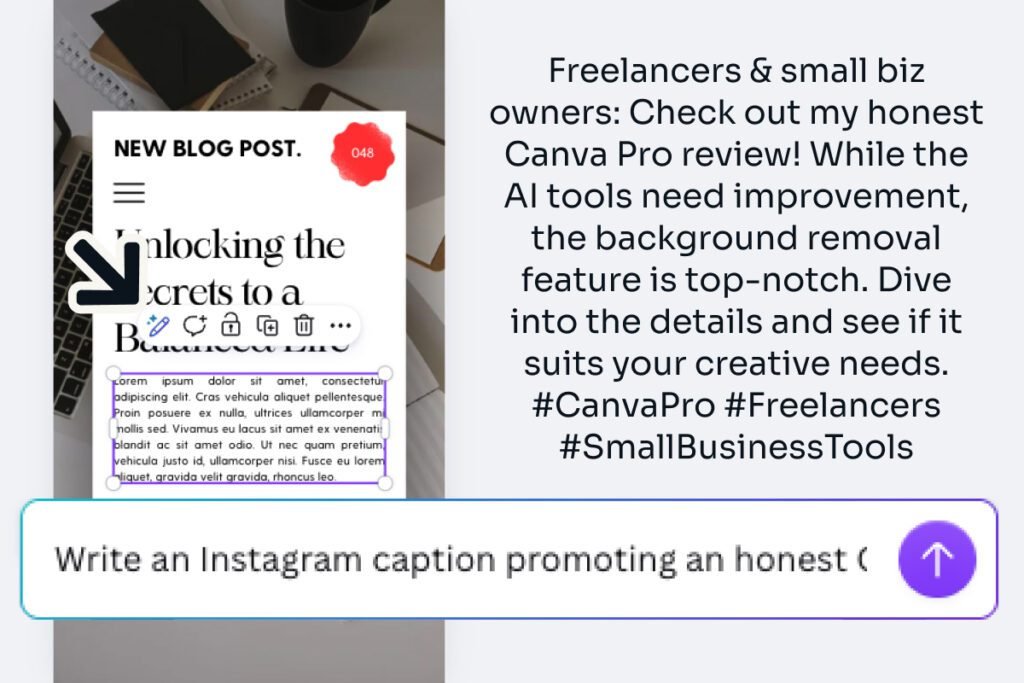
Magic Write lives inside any text box. My prompt: “Write an Instagram caption promoting an honest Canva Pro review for freelancers and small business owners. Mention that the AI tools are the weak spot but background removal is excellent. Direct, no hype, under 50 words.” It answered in seconds, under 50 words, no emojis, my angle intact, and full of filler like “top-notch” and “Dive into the details”; nothing in it proved anyone had opened the tool. Asked vaguely, it got worse: emojis and “game-changer”. It earns its place on the small stuff, like rewriting a line, shortening a paragraph, fixing spelling, and getting past the empty text box. Rewrite whatever it gives you. Magic Write on its own is no reason to upgrade.
Every plan
The AI Allowance: What Counts Against It
Canva no longer gives unlimited AI. Generative tools such as text-to-image draw on a shared monthly allowance. Free gets up to 20 uses, Pro ten times as much, Business twenty times (the AI row in the pricing table above), and an AI Pass costs extra when you run out. Canva’s pricing page says the allowance during a trial “is the same as Canva Free”, so the full ten times starts only once you pay. The free account showed me no meter of what was left. The priciest tools, which Canva calls Ultra, use it up fastest, while background removal and Canva’s Standard AI tools, Magic Write among them, don’t touch it on Pro. Upgrading for cutouts, you’ll barely notice the ceiling; generating images or video at volume, you’ll hit it.
Source: Canva’s pricing page, read October 2026.
Pro only
Transparent PNG Export: Fixes the Free Plan’s Hardest Limit
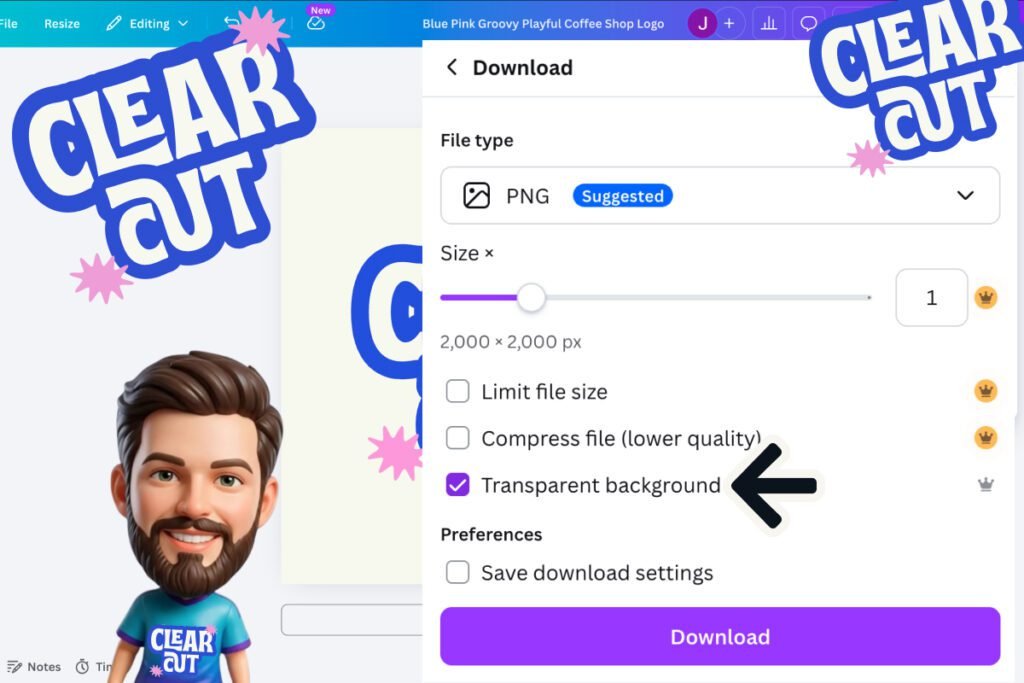
Canva Free exports every PNG on white, and every download option beyond the file type is crowned, “Transparent background” included. On Pro that checkbox works: I exported a logo and an AI avatar as transparent PNGs and dropped both onto colored backgrounds with no white box and no edge fringing.
Skip it and the file saves on solid white. “Save download settings” remembers the choice, but then social posts export transparent too, so glance at the panel before every export.
Are you convinced?
Canva Pro: Pros and Cons
Pros:
- Up to five full Brand Kits, enough for several clients
- Replace across designs swaps a logo everywhere at once
- Magic Resize: a quick realignment instead of a rebuild
- Clean cutouts of flowing hair, a cluttered office, and a thin teapot handle, no brushing
- Premium templates and stock, so you rarely start from blank
- Transparent PNG export in one checkbox
- The help assistant says a person is reachable and offers a “Contact Support” card
Cons:
- Magic Studio AI blurs or misses on complex jobs
- Magic Resize doesn’t move your content into the new frame
- Costs more than Adobe Express Premium, whether you pay Canva monthly or yearly
- Text-to-image couldn’t reproduce my logo
- A video cutout of a moving subject left shifting scraps of the background behind
- Live chat not findable on the Help page when I tested, and no public community
Who Should Upgrade to Canva Pro?
Who it’s for:
- Freelancers branding work for several clients: five Brand Kits
- Small business owners posting every week: resize and templates cut the time per design
- Non-designers after professional-looking output: the templates supply the structure
- Anyone paying separately for background removal or stock photos: Pro covers both
Who it’s not for:
- Occasional designers: Free handles a handful of graphics a month
- Teams that need roles, approvals, and brand controls: that’s Canva Business
- Professional designers needing fine typography, complex layers, or vector precision: use Figma, Illustrator, or InDesign
If the choice is between Canva and Adobe Express rather than Canva Pro vs Free, my Adobe Express vs Canva comparison covers which suits which workflow.
Free Alternatives to Canva Pro
Three of the four free Canva alternatives I tested head-to-head are below; my Best Canva Alternatives guide ranks all four.
Adobe Express is the closest match, and its free plan removes photo backgrounds and exports transparent PNGs, two jobs Canva keeps for Pro.
Prefer Adobe Express?
VistaCreate is the free plan whose brand kit actually applies to a design, a job Canva Free’s kit does with three colors and no logo or fonts.
Picsart resizes a finished design on its free plan, which Canva Free sends to Business.
Frequently Asked Questions
Can students, teachers, or nonprofits get Canva Pro for free?
You can get Canva Pro for free through Canva’s nonprofit or education program, or for the length of the free trial. Registered nonprofits qualify, and K-12 teachers and students get most of it, but Canva Education doesn’t cover college or university students. Canva’s nonprofits page says they get “free access to all Canva Pro features”, plus team tools, for one team. They must be charities officially registered in their country (501(c)(3) in the US), and the eligibility guidelines leave each approval to Canva’s discretion. Canva Education is free for K-12 teachers and their students, and its page says “Most of Canva’s premium features are included” (Canva’s nonprofits and education pages, read October 2026). These programs’ terms can change and can differ by region, so read Canva’s current terms before you apply.
How much is Canva Pro?
$18 a month, or $144 a year billed annually, which works out to $12 a month and saves $72. Canva Pro pricing here is in USD and varies by region. The Canva Pro free trial was 30 days when I tested, and Canva’s help page on upgrading says it is available “once per Canva account and once per payment method”, so time on the free plan doesn’t use it up (read October 2026). Trial terms can change and can differ by region, so read Canva’s current terms before you subscribe.
Can I cancel Canva Pro and get a refund?
Canva’s Terms of Use say you can cancel Canva Pro “at any time via your account settings”, that Pro then runs to the end of your billing cycle, and that you get no refund of fees already paid, “except where required by law”. Its help page on subscription refunds says “In most cases, Canva subscriptions aren’t refundable” and adds that Canva reviews each request and sometimes helps, depending on the situation. A plan bought through Apple is refunded by Apple, not Canva (both Canva pages read October 2026). Refund terms can change and can differ by region, so read Canva’s current terms before you subscribe. Trustpilot reviewers mostly complain about billing after a missed trial cancellation, so set a reminder before your trial ends.
Does Canva Pro include AI design tools?
Yes, it includes Magic Eraser and the other Magic Studio editors, Magic Write, and text-to-image. The generative tools share a monthly AI allowance roughly ten times the free one, and Pro’s background removal and Standard AI tools, Magic Write among them, don’t draw on it. In my tests Magic Eraser was excellent on simple backgrounds, text-to-image couldn’t reproduce a logo, and Magic Write needed rewriting.
Can I use Canva Pro templates and photos in client work?
Yes, with conditions. The Canva Pro license covers commercial use, but the content isn’t copyright free: as Canva’s help page on products for sale puts it, “You only have a license to it.” You can hand a finished design that uses Pro templates, photos, or elements to a client for their own use, but the license says such a design “can only be transferred to a single client”, you need a written agreement with that client, and you stay responsible if they break Canva’s terms. You can’t sell or pass on the photos and elements on their own, put them in a trademark, or use Pro content in templates you sell. (Canva’s Content License Agreement and its help page on products for sale, read October 2026.)
What are the best free alternatives to Canva?
Adobe Express is the strongest all-rounder. VistaCreate was the only one I tested whose free brand kit actually applies to a design, and Microsoft Designer is AI-first and still maturing. My Best Canva Alternatives guide ranks all four.
Final Verdict: Is Canva Pro Worth It?
Canva Pro is worth it if you make branded visuals on a schedule. The Brand Kit, Magic Resize, and Background Remover with transparent export save time every week, and of those, only the Brand Kit works on the free plan at all.
Skip it if AI-made designs and copy are why you’d upgrade, or if you make a few graphics a month, because Free covers that. Adobe Express does comparable work for less, and reaching a person took more hunting than it should when I tested.
PRO
Overall:
4 / 5
4.5 / 5
Ease of use
4 / 5
Value
3.5 / 5
Features
4.5 / 5
Support
The free plan scores 3.5.
Evidence verified: August 2026

By Jonas Moons, founder & reviewer
I test every tool on Clear-Cut Reviews myself. No ghostwriters, no faceless team. If a tool falls short, I say so, even when it earns me nothing.