Adobe Express Review 2026: Is It Worth It for Freelancers and Small Businesses?

Adobe Express is a free browser-based design tool built for non-designers. Here’s whether it can replace the tools you’re already paying for.

Bottom line: Worth it if you process files or use AI images in client work; less so if you need branded content free, because Brands can be built on the free plan but not applied to a design.

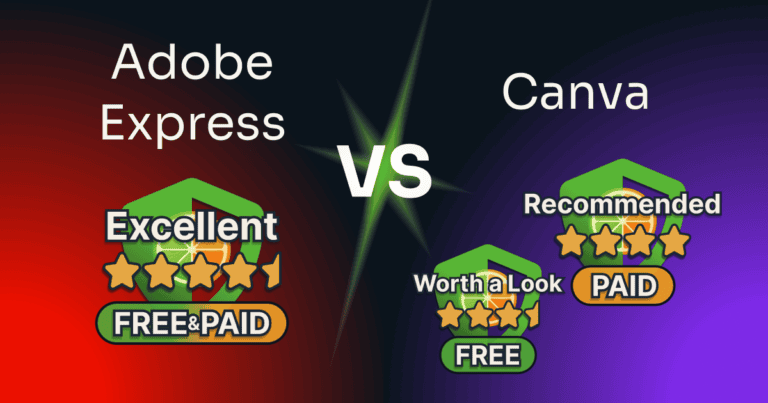
adobe express review — rated Excellent, 4.5 out of 5 on both the free and Premium plans, beside Firefly AI image generation, background removal and branded social designs

If you’re comparing Adobe Express to Canva and wondering whether the Adobe name adds real value, this Adobe Express review gives you the answer based on testing it myself across several projects. I’ll cover what works, what doesn’t, where the free plan runs out, and whether it’s worth using over tools you already know. No filler, just what I found.

Some links below are affiliate links. If you buy through them, I may earn a commission at no extra cost to you. No affiliate program can change my scores.
adobe express review — adobe express tool card

free

Premium

Adobe Express

Total Score:

4.5 / 5

Pricing: $9.99/mo, no annual commitment
(30-day free trial) 

Pros:

  • Background remover works clean on the first attempt
  • Free plan exports 4K video, no watermark, from 4K footage
  • Firefly AI images licensed for commercial use

Cons:

  • Brands builds free, but needs Premium to apply
  • Firefly drops parts of a detailed brief

Best for:

  • Freelancers needing fast, standalone file tools
  • Creative Cloud Pro subscribers, who already have Premium

Not for:

  • Branded content on the free plan
  • Anyone wanting Canva’s instant familiarity

What Is Adobe Express?

Adobe Express is a browser-based and mobile design tool from Adobe, originally launched as Adobe Spark before rebranding in 2022. It lets non-designers create social media graphics, short videos, flyers, and PDFs using templates and AI-assisted tools, without needing Photoshop or Illustrator.

For freelancers and small business owners, it sits in the same category as Canva: a drag-and-drop editor that gets visual content done quickly, without design experience. What separates it is Adobe Firefly, a commercially licensed AI image generator built into the canvas, plus a set of quick edits that process files without ever opening a design editor. Those two features are where Adobe Express earns its place.

Is Adobe Express Worth It? Score Breakdown

I scored both plans separately, and they landed level. Adobe Express Free and Adobe Express Premium both come out at 4.5. The scores below are for the free plan, since that’s how most people meet Adobe Express. Where Premium differs, I say so.

One thing this review doesn’t cover: the plans a team buys. Adobe sells Express for teams and for enterprise, with an admin console, shared brand controls and approval workflows, on a two-seat minimum. Different products, different prices, and not what’s tested here. Everything below is the plan one person buys for themselves.

Overall:

4.5 / 5

One of the strongest free plans in design software, and a paid tier that stays fair rather than punishing you for not upgrading. What keeps it off full marks is Brands being unusable without paying, no way to resize a design on the free plan at all, and generative AI that drops parts of a detailed brief.

4.5 / 5

UX

Thoughtfully handled for a free user. Quick edits sit on the homepage, the template filters let you hide paid content so you never fall for a locked design, and paywalls are announced upfront rather than sprung mid-project. One trap costs it the half point, and it’s a real one: a frame’s background color gets baked into a “transparent” PNG, and the fix is buried enough that I hit the same problem twice, months apart, and struggled to find it the second time. A feature this good shouldn’t be this hard to use correctly.

5 / 5

Value

The free plan delivers working tools, not demos: a six-figure template library, over a million stock assets, excellent background removal, transparent PNG export that Canva charges for, and video with no watermark, all without a credit card. Premium earns it too. It costs a little over half what Canva Pro does and adds hundreds of millions of stock assets, the best one-click resize I’ve used, and video background removal.

3.5 / 5

Features

The breadth is enormous and the core tools deliver, but the free plan has three real holes. Brands can be built and not applied. A finished design can’t be resized at all, so reusing one layout across formats means rebuilding it. And the generative AI drops parts of a detailed brief. On Premium this is a 4 — Brands and resize unlock, leaving only the uneven AI and a video cutout that erased half a laptop.

4.5 / 5

Support

Strong self-service, an active community, and a help page you can actually find. What costs the free plan half a point is that there’s no private channel to a human. On Premium this is a 5 — paying unlocks an advisor.

On the Support score: I tested this rather than reading it off Adobe’s plan page, and the two tiers turned out not to be the same product.

Asked in writing whether a real person is reachable, the assistant on a Premium account offers to connect you to an advisor once you describe the problem. On a free account it says the opposite in plain terms: it can’t find an active plan, and tells you that signing in with one is what unlocks the advisor. That’s honest and signposted rather than hidden, but it does mean a free user with an account-specific problem, a billing question, a login failure, missing files, has nowhere private to take it.

Getting there is easy on both plans, which sounds trivial until you try the alternative. Click the help icon, click Need help, and you’re on the help page. Canva makes you start filing a complaint before a Help entry even appears in its navigation.

The self-service side is genuinely strong and free on both plans: a searchable Help Center with Express-specific articles, a dedicated troubleshooting section covering known issues and file conversion problems, Adobe Learn tutorials, and an in-app assistant.

The community is better than most vendors manage. Around 9,800 replies across 5,700 questions, staff answers marked as accepted solutions, bug reports that go to a public vote, and free accounts can post. Of the ten most recent discussions, eight had replies and several arrived within two hours. The two without were minutes old.

The product-specific ratings back that up. G2 rates Adobe Express 4.5 across roughly 425 reviews, and Capterra 4.6 across more than 1,200. Adobe as a company scores far worse on consumer review sites, but those complaints are overwhelmingly about Creative Cloud subscriptions and cancellations rather than Express, and judging a product by its parent’s billing reputation isn’t fair.

One thread in those reviews is worth naming: some describe agents closing cases without resolving them, which would be a support-quality problem rather than a policy one. I haven’t counted it against Adobe Express, because a company-wide rating gives no way to tell whether those cases were Express or Creative Cloud, and Express’s own ratings don’t show the same pattern.

Worth saying plainly: this is a criterion where Adobe beats Canva, on both tiers. Canva’s plan page sells live chat on Pro, but there’s no chat button, ticket form or contact link anywhere on its help page, and it runs no public community at all. (Aggregates as of July 2026; support paths tested August 2026.)

How Much Does Adobe Express Cost?

Adobe Express has a permanent free plan, not a trial and not a time-limited demo. You can create an account and start working today without entering payment details. The real question is whether the features locked behind Premium match what you need on a regular basis.

FeatureFreePremium
Price$0$9.99/month, no annual commitment
Free trialNone30 days
Templates ²100,000+All premium templates
Adobe Stock assets ²1M+200M+
Fonts4,000+30,000+
Generative AIFree daily generations, no stated number250 credits/month
Cloud storage ¹5 GB10 GB
Version history10 days30 days
Brands and Libraries
Transparent PNG export
Video lengthUp to 30 minutesUp to 2 hours
Remove video background
PDF quick actions10 per monthUnlimited
Social scheduling1 account per network3 accounts per network
Real-time co-editing
Resize for multiple formats at once

¹ Adobe contradicts itself here. Its plan card says Premium includes 100 GB; its own feature comparison table, on the same page, says 10 GB. The table looks more plausible, because its ladder (5 GB free, 10 GB Premium, 100 GB on Creative Cloud Pro) leaves Creative Cloud Pro an actual storage advantage, which 100 GB on Premium would erase. I couldn’t settle it inside the product either: Adobe shows its storage meter through Creative Cloud rather than Express, so an Express-only account has nothing to read. Treat 10 GB as the likely figure, and check your own account if storage matters to your decision. Checked July 2026.

² Adobe publishes different counts in different places on the same page. Its plan cards say 100,000+ free templates and 200M+ paid assets; its detailed comparison table says 268,000+ free templates and 350M+ paid photos alone, which can’t fit inside a 200M total. I’ve used Adobe’s most conservative figures above, because a floor stays true if the real number is higher. What I counted in the app myself is in the templates section below, dated.

A note on Adobe’s feature table. Treat it as a map rather than gospel. The storage row above contradicts Adobe’s own plan card. Its free template count sits below what the app itself reports, covered in the templates section. And “Export in 4K,” listed as Premium-only, turns out to describe something narrower than it sounds: a free account can export 4K video, it just can’t change the resolution. That one’s covered in the video section.

Two versions of the same plan. Adobe sells Express Premium at $9.99/month with a 30-day trial, and Acrobat Express at $10.99/month with a 7-day trial. Acrobat Express is the same Express features plus Acrobat’s PDF and AI Assistant tools. If you don’t need PDF workflows, the cheaper plan with the longer trial is the obvious pick, and it’s easy to miss because Adobe’s Express pricing page promotes only the Acrobat version.

For Creative Cloud subscribers: Creative Cloud Pro includes the Adobe Express Premium plan, so check what you already have before paying separately. Adobe also sells a large catalog beyond Express, and its own plans page is the place to compare it.

Interested?

Key Features of Adobe Express

Rather than walk through everything Adobe lists, this section covers what actually gets used, and how each one held up. Every test below ran on my own files and my own briefs, never Adobe’s sample assets. Some of that was design produced for this site; some was built specifically to find where a limit sits, which is the part a real project rarely does on purpose. I started on the free plan and worked through everything it allows before upgrading, so the free-tier walls below are where I actually hit them rather than where Adobe says they are. Each feature carries a tag for which plan it’s on.

On Free too

Quick Edits: The Most Underrated Part of Adobe Express

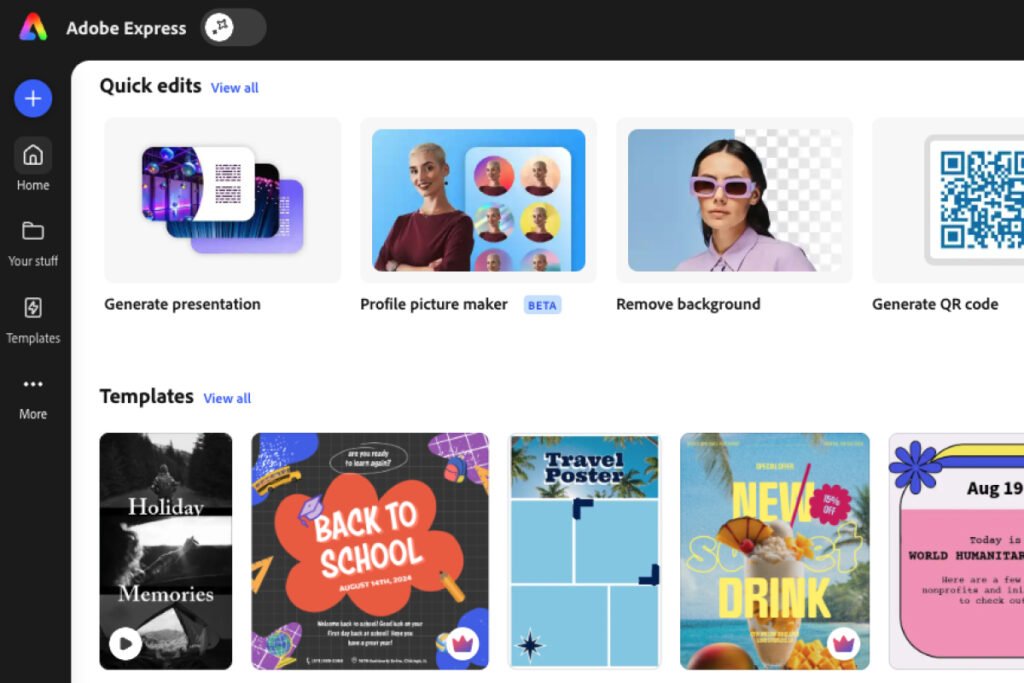
Quick edits sit in a row on the Adobe Express homepage and each one does a single job without opening a design canvas at all. Remove background, Generate QR code, Edit PDF, Convert to MP4, Caption video, Generate presentation, Animate characters, Profile picture maker. You click the tool, feed it a file, and get a result. (Adobe’s pricing page calls the same set Quick Actions. Same thing, two names.)

The thing worth noticing is what isn’t there: not one of them carries a crown. Scroll a few rows down to the templates and the crowns appear immediately, so Adobe clearly marks its paid content. The absence of any crown across the entire Quick edits row is the tell that this whole toolkit is free.

adobe express review — Quick edits row on the free plan with no premium crowns

Generate QR code was the standout for practical use. You paste a URL, pick a color and a marker style, and download it as a PNG, free, with no watermark. There’s also a set of templates that build the code straight into a menu, poster, invitation, or business card if you want more than a bare square. The QR code on this site’s own branded graphics came out of it.

adobe express review — Generate QR code quick edit with color and style options

Remove background is the other one that earns its keep, and it’s a quick edit rather than a canvas feature. Free, no watermark, and no compression applied to the file you get back.

I ran a street portrait of a man in a suit through it, then dropped the cutout onto a plain studio backdrop. Clean on the first attempt with no manual correction: crisp edges along the jacket and collar, and the tricky gap between his raised arm and his body cut out properly rather than filled in. The swapped background reads like a real studio shot rather than a paste-up.

adobe express review — background removal and background swap on a portrait, before and after

One catch that will cost you an export if nobody warns you: if the frame you’re working in has a background color, even plain white, the download bakes it in. You get a PNG with a white box instead of a transparent one. Delete the background color from the frame first, then export, and the transparency comes through properly. It’s the same trap Canva sets with its “Transparent background” checkbox, just wearing different clothes.

One real limit sits in here, and it’s the only one in the whole toolkit: PDF quick actions are capped at 10 a month on free. Importing a PDF is unlimited, and Premium removes the cap entirely. Everything else in the row, image background removal, resize, crop, QR codes, GIF and MP4 conversion, video captions, trimming, is uncapped.

Free, with limits

Adobe Firefly AI: Image Generation That Listens, Mostly

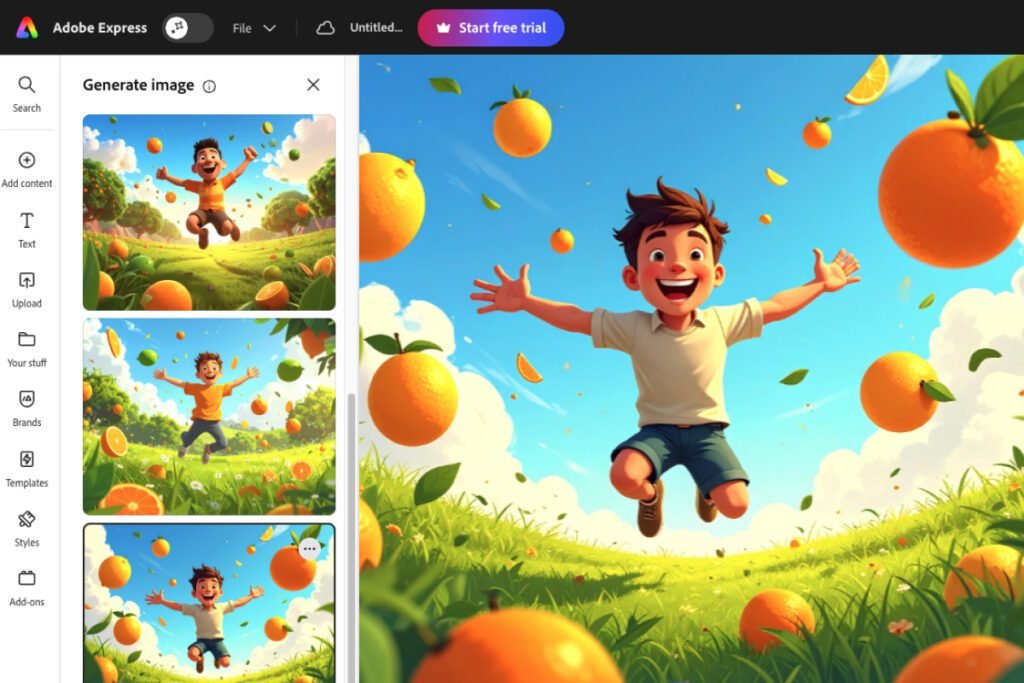
Firefly generates images from a text prompt inside the canvas, so you don’t leave Adobe Express to make one. Each run returns four options and you pick the one you want.

I gave it a deliberately busy brief: “create a grass field landscape with flying oranges, limes and lemons. With a cartoonish man in the middle jumping in the air with a smile on his face.” That’s a scene, a cast of three fruits, a character, an action, and a mood all in one sentence.

It handled it well. All four results were usable, with the composition, the style, and the mood matching what I asked for.

The errors show up in the details, and there were three worth naming.

One of the four dropped the limes and lemons entirely and filled the sky with oranges only, quietly ignoring a third of the brief.

The character was less reliable than the scene. I asked for a man: one image gave me one, one was borderline, and two were clearly children. So treat a character description as a suggestion rather than an instruction, and if you need an adult, write “adult man” and don’t assume “man” will carry it.

And the fruit anatomy doesn’t survive inspection. A sliced orange came back showing a clean cross-section while its stem sat on the side, which isn’t how an orange works. Fine at a glance, wrong if you look.

adobe express review — Firefly AI generating four image options from one prompt

That’s the honest pattern with Firefly, and probably with AI images generally: the bigger the ask, the more it drops. Be specific about what you want, keep the brief tight, and check the details rather than the overall impression. For social posts, backgrounds, and illustration where nobody is inspecting the fruit, it’s genuinely useful and fast.

The commercial licensing is what separates Firefly from most AI image tools. It’s trained on licensed Adobe Stock and public domain material rather than scraped web images, and Adobe permits commercial use of the outputs on both free and paid plans. For client work, that’s a genuinely different footing from most generators.

Two limits are worth knowing before you rely on it. IP indemnification, Adobe’s promise to defend you if someone claims your output infringes, is not included on individual Express plans, free or paid. Adobe’s own comparison table marks it unavailable on both and reserves it for select enterprise plans. Separately, anything Adobe labels a beta generative feature may be personal-use only, by its own terms, so check the label before putting beta output in front of a client.

In short: permission to use the images commercially, without a legal guarantee standing behind them.

Text effects work the same way and are free. Describe what you want, “smooth stylish green oil paint,” or pick from presets like diamond glitter and gold drip, and it renders onto a headline in seconds.

adobe express review — Generate text effects panel and the resulting styled headline

On limits, Adobe is vaguer than you’d like. Premium gets a stated 250 generative credits a month. Free gets “free daily generations” with no published number, so you find the ceiling by hitting it. Two things do carry hard caps worth knowing: generating presentations is 5 free uses, lifetime, and AI-generated 5-second videos are 2 free uses, lifetime. Those aren’t monthly allowances, they’re a taste and then it’s gone.

Part free

Part Premium

Fonts: A Free Tool That Recommends Paid Fonts

This one is worth stating precisely, because it’s easy to misread and I misread it myself at first.

The font recommendation tool is free. Not limited, not a trial, not crowned. Adobe’s own plan comparison lists it as available on the free plan and on Premium alike. You can ask for font suggestions on a free account as often as you want.

The fonts it suggests are a separate question. Free accounts get 4,000+ Adobe Fonts, and Premium unlocks the full 30,000+. The recommendation tool draws from the whole library rather than just your tier, so most of what it hands back is Premium and carries a crown. Free options do appear in the list, Fira Sans among them, but you have to look for them.

So: free tool, mostly paid suggestions. Nothing is hidden from you, and the crowns are clearly marked. But if you pick from the top of the list without checking, you’ll land on a font you can’t actually use, and conclude the whole feature is paywalled when it isn’t. Scan for the uncrowned ones.

adobe express review — font recommendations showing mostly crowned Premium fonts on the free plan

Free, with limits

Templates and Adobe Stock: More Free Than You’d Expect

Premium templates exist and they’re marked with a crown, so there is a paid tier here. What makes it workable is that Adobe lets you filter them out entirely.

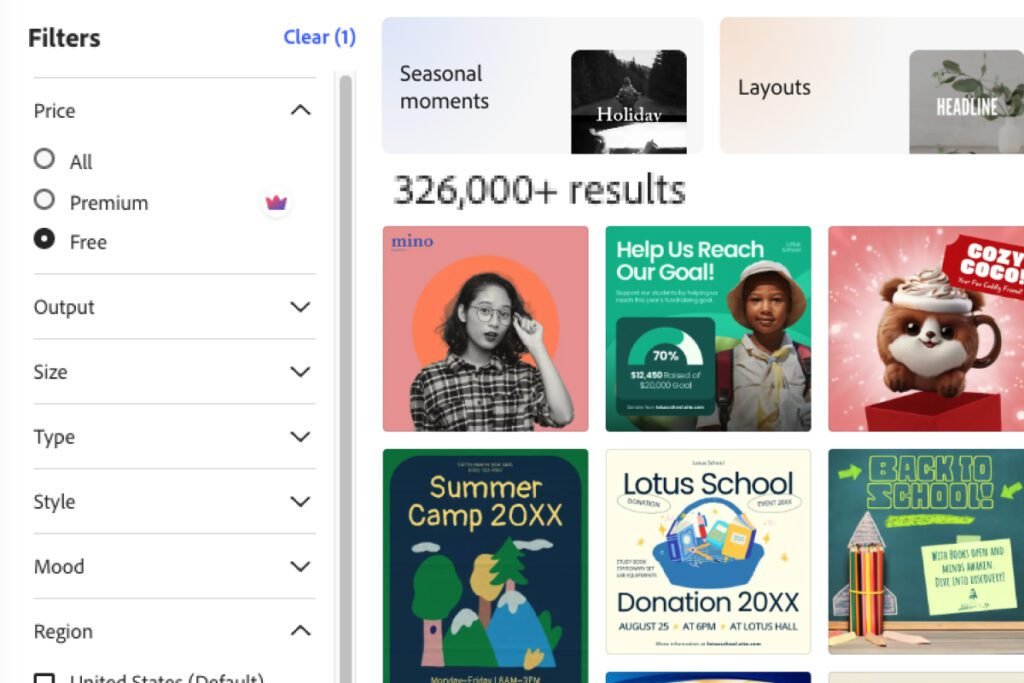
The template browser has a filter panel down the left: Price, Output, Size, Type, Style, Mood, and Region. Set Price to Free and the crowned results simply disappear from the grid. That sounds minor and isn’t. Browsing a library where half the results are locked is the fastest way to fall for a template you can’t use, and one click removes the problem.

The free library is bigger than “free tier” suggests, and it’s worth understanding how it’s organized before you judge the size. Explore splits into separate sections (Templates, Photos, Videos, Design assets, Backgrounds, Text layouts, Webpage templates, Stickers), and each filters on its own.

So the numbers stack rather than overlap. With Price set to Free, Templates alone returns over 326,000 results, or over 138,000 if you leave Region on its US and Global default. Videos are a separate section with more than 88,000 free, and Photos more than 487,000. That’s before counting backgrounds, stickers, design assets, or text layouts.

This isn’t a stripped-back consolation library either. Certificates, invoices, thank-you letters, fundraising graphics, social posts, posters: the things a small business actually needs on a Tuesday rather than the things that look good in a feature list. The invoice templates alone will save a freelancer an afternoon. You will not run out of starting points.

The Style and Mood filters are the ones I didn’t expect. Being able to narrow by feel rather than by format is genuinely useful when you know the tone you want but not the layout.

adobe express review — template filters set to free showing 326,000+ results

Adobe’s own numbers don’t agree with each other, or with the app. Its plan card says 100,000+ free templates, its comparison table says 268,000+, and the filter counted over 326,000. The pricing table above uses Adobe’s lowest figure, because an understated floor stays true; the counts here are what I saw on screen, in July 2026. All three point the same way: the free library is far bigger than “free tier” implies.

Library counts checked July 2026. Adobe adds to these continually, so treat them as a floor rather than a fixed figure.

Adobe Stock is more generous on the free plan than most people expect too. You get over a million royalty-free photos, videos, music tracks, and design elements at no cost, with the full library reserved for Premium. One catch worth knowing: Adobe can move a free asset to paid without notice, so what’s free today isn’t guaranteed to stay free.

On Free too

Video From a Template: 4K Export on the Free Plan

Video is where Adobe Express’s free plan stops behaving like a free plan.

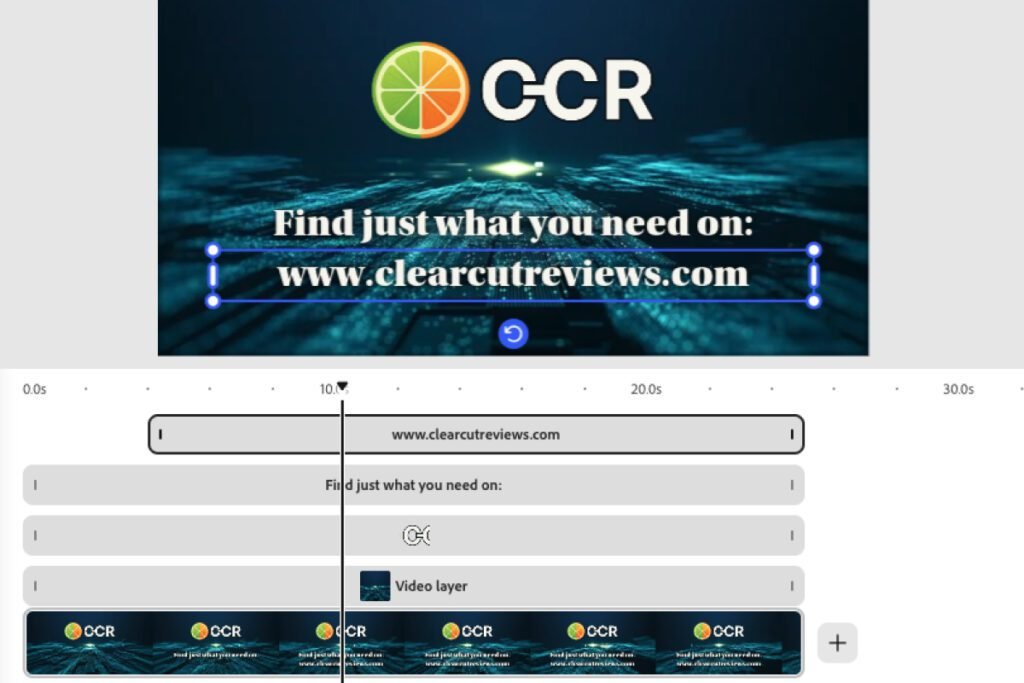
You start from a template and work on a timeline, with every element on its own layer: the background video, your logo, each line of text. Each one takes its own effects and animations, so it behaves like a real editor rather than a slideshow builder.

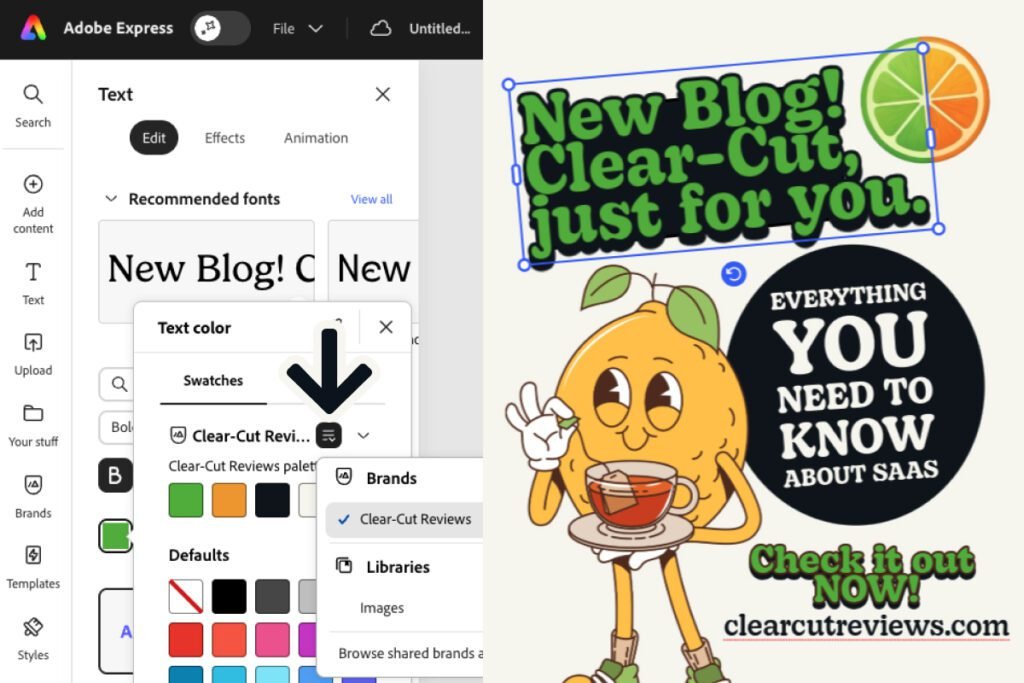
My build took four steps. Pick a template, drag in the CCR logo, type the text over the video, then color that text by sampling directly from the logo I’d just dropped in. That last step is worth knowing, because it keeps a video on-brand without touching Brands at all, and Brands is the one thing here sitting behind the paywall.

adobe express review — video editor timeline with logo, text, and video layers

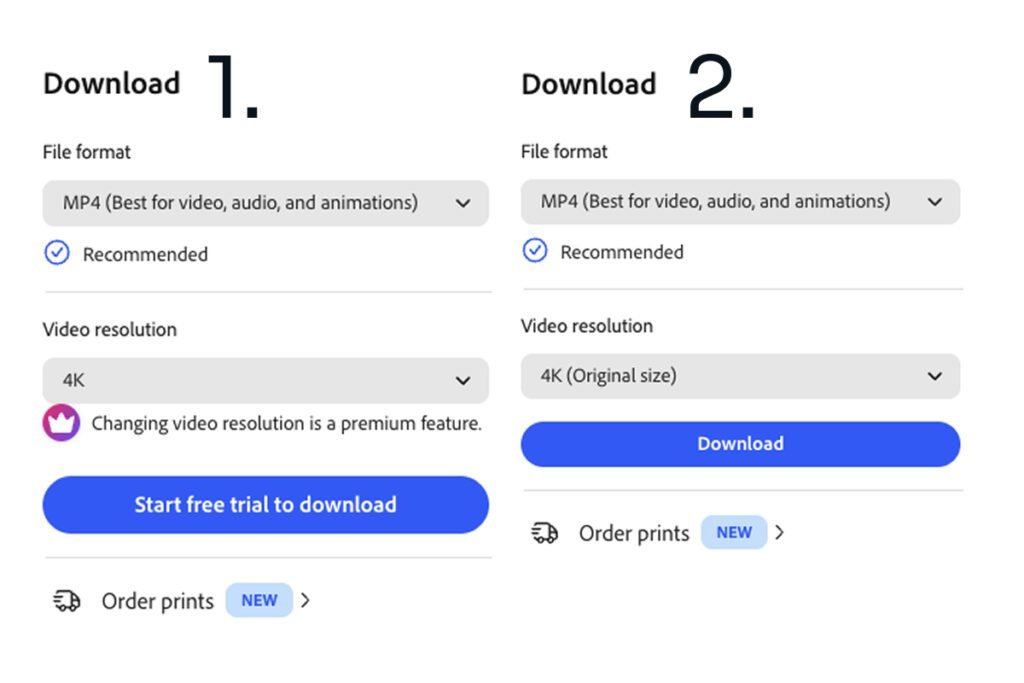
The export is where it gets interesting. I got a clean MP4 with no watermark, and when I checked the file properties it came back at 3840 × 2160: full 4K UHD, 132 MB for 25 seconds of video.

Adobe’s own plan comparison lists “Export in 4K” as Premium-only, so that looked wrong. It isn’t. The rule is narrower than the table suggests, and Adobe states it plainly in the app itself: “Changing video resolution is a premium feature.”

So on the free plan your export resolution is decided by your source footage. Build from a 4K clip and the resolution dropdown reads “4K (Original size)” with a normal Download button underneath. Build from a 1080p clip, select 4K, and the same panel blocks you and offers a trial instead. Free exports at native resolution. Paying is what lets you change it, in either direction.

Which makes the practical advice simple: on free, your output resolution is chosen when you pick your clip, not when you export.

adobe express review — free plan video export blocked at 4K on a 1080p source but allowed at original 4K

There’s a catch that makes this harder than it sounds. Adobe’s stock video library has no resolution filter, so you can’t search for 4K footage. You open clips one at a time and check. Free 4K export is real, but sourcing a 4K clip to feed it is a manual hunt.

Worth saying that Adobe’s table isn’t lying here so much as compressing a conditional into a checkmark. A free user genuinely can walk away with a 4K file. What they can’t do is pick the number.

Length is capped rather than open-ended: Adobe lists free projects at up to 30 minutes and Premium up to two hours. I stretched a project past ten minutes without any warning, which fits.

Premium only

Video Background Removal: Excellent, With One Error It Shouldn’t Make

Photo cutouts are free. Video cutouts aren’t, and this is the paid video feature most likely to justify the upgrade on its own. (Adobe also reserves Enhance Speech for Premium, which I didn’t test.)

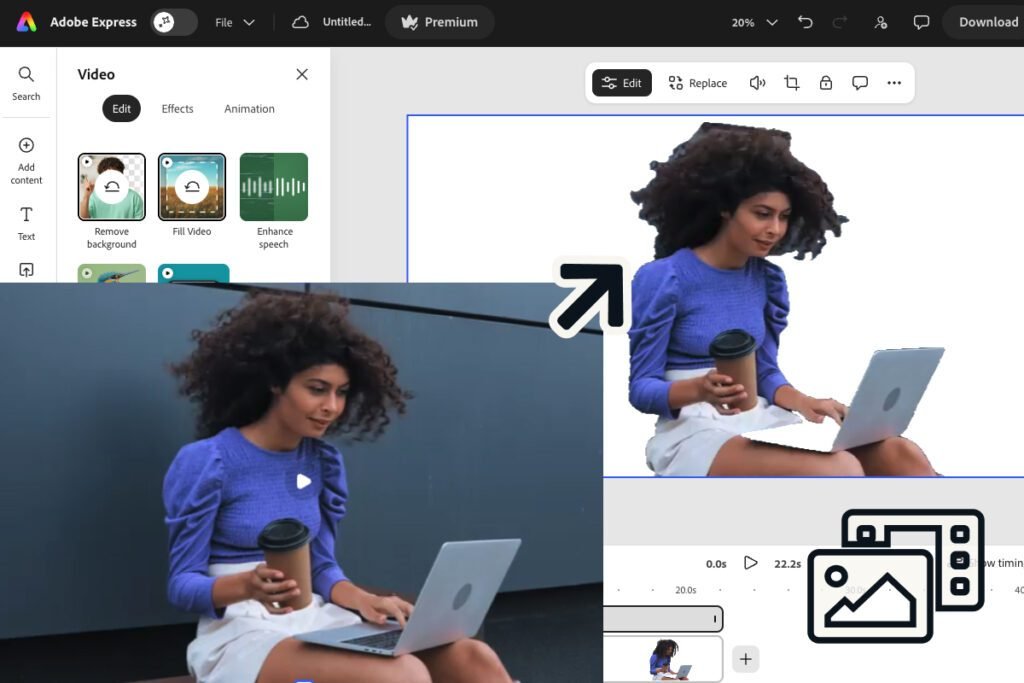
I gave it the hardest subject I could find: a woman with long, voluminous curly hair, holding a coffee and a laptop against a dark wall. Hair like that is where background removers fall apart, and Adobe Express got most of it. Genuinely impressive for the difficulty.

Two flaws, one forgivable and one not.

The forgivable one: a few slivers of the old background survive between strands of hair. On a dark backdrop that’s easy to hide, and I covered it by placing a shape in a near-matching color behind her. Nobody would spot it in the finished post.

The one that shouldn’t happen: it erased the bottom half of her laptop, leaving it transparent. I ran the same clip again and got the same result, so it’s reproducible rather than bad luck. What makes it hard to defend is that the lower half of the laptop is the same shade as the upper half it kept perfectly, so it isn’t a color-matching problem you could explain away. Workable, since you can crop it out of frame, but it’s a real error on an otherwise excellent cutout.

adobe express review — removing a video background from a subject with curly hair
adobe express review — finished branded post made from a video background removal

Premium only

One-Click Resize: The Best Version of This I’ve Tested

First, what the free plan doesn’t get. It isn’t just the automatic version that’s paid: a free account can’t resize a finished design at all. The panel lets you type a custom width and height into fields that look perfectly usable, and applying them raises the paywall with nothing changed. The only free route is to note the dimensions you need, start a new design at that size, and rebuild it by hand. Canva blocks this too, so neither free plan lets you reuse a layout across formats.

Once you pay, it’s the best version of this feature I’ve tested.

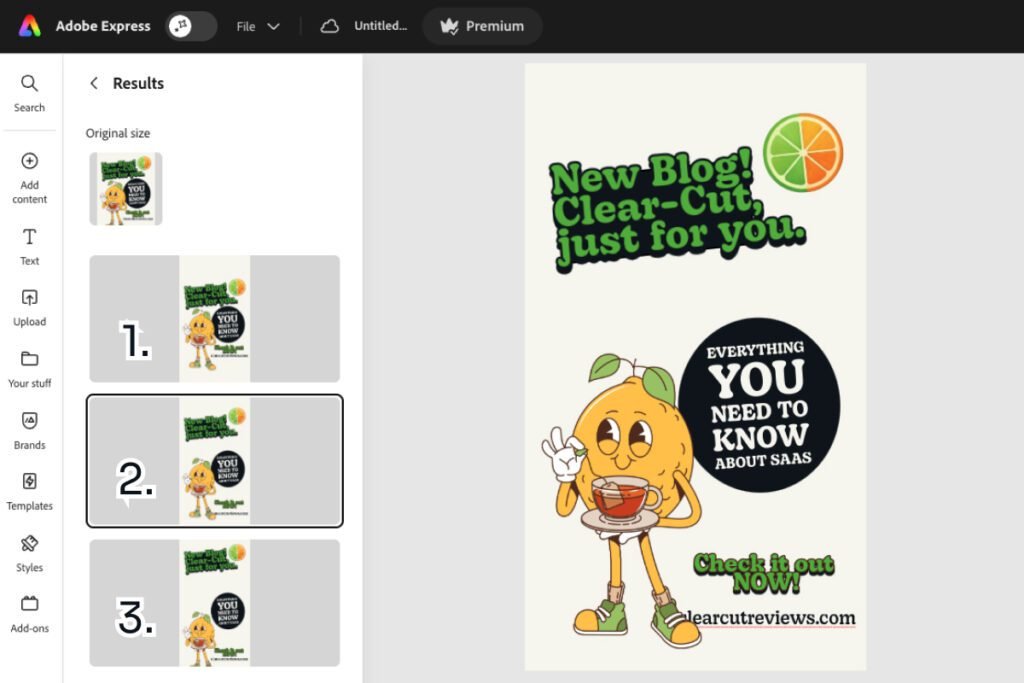
Take a finished design, pick a new size, and Adobe Express rebuilds it for you. I ran an Instagram post at 1080×1350 into a story at 1080×1920, the same conversion I’d tested elsewhere, so the results were directly comparable.

Two things make it good. It actually moves your content into the new shape rather than handing you a taller canvas with everything sitting where it was. And it returns three different arrangements to choose from, so you’re picking a layout rather than accepting whatever it produced.

The result needed almost nothing from me. Everything repositioned sensibly on the first attempt, and the only thing wanting a nudge was the website URL along the bottom edge. That’s a real one-click feature rather than a one-click-then-fix-it-yourself feature.

Worth knowing if you’re weighing this against Canva: Canva’s Magic Resize changes the frame and leaves your design where it was, so you realign it by hand every time. Adobe does the repositioning and then offers you options. Same job, and this is the better tool for it.

adobe express review — One-click Resize offering three layout options for a new format

Part free

Part Premium

Brands: Free to Build, Paid to Use

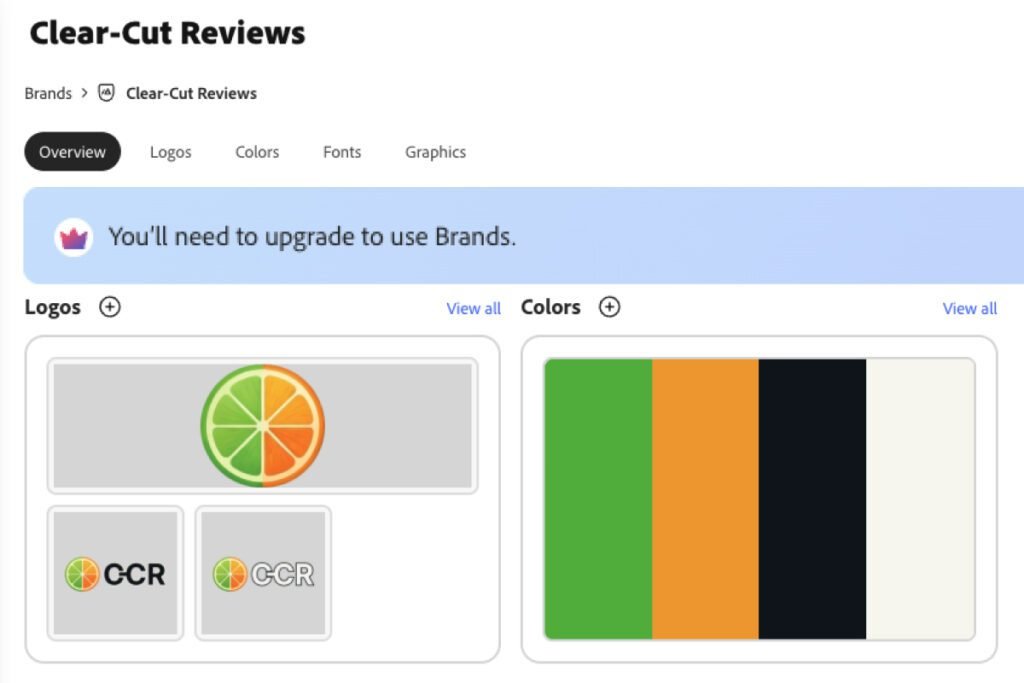
Adobe Express calls this Brands, and it stores your logos, colors, fonts, and graphics in one place so they’re ready to drop into any project. Each lives on its own tab, so a brand is a proper set of assets rather than a single saved swatch.

Building one is completely free. I added three logo variants and a four-color palette without hitting a single prompt, and the fonts and graphics tabs work the same way. Nothing about the setup is restricted.

Using it is not. A banner sits at the top of the Brands page reading “You’ll need to upgrade to use Brands,” so the wall is stated upfront rather than sprung on you halfway through a project. Credit where it’s due: that’s more honest than letting you find out only when you hit Apply. It’s still the most frustrating limitation in Adobe Express, and it’s the one thing Canva does better, not because Canva’s free kit is generous (it caps you at three colors and locks logos and fonts behind Pro), but because those three colors actually apply to your designs.

adobe express review — Brands page with upgrade banner above saved logos and colors

One genuinely smart touch: when you upload a logo, Adobe Express offers to build a color palette from it automatically. For client work that’s a real shortcut, because a customer who sends you a logo has effectively sent you their palette too. Treat it as a starting point rather than gospel, though. The colors it pulls are sampled from the image, so they can land close to a brand’s official values without matching them. Check them against the real brand guide before you use them on anything a client will see.

Once you pay, there are two ways to apply a brand, and they’re not equal.

The fast one is Apply brand in the Brands panel: a single click repaints the whole design in your colors. It works, but treat it as a rough pass rather than a result. Run on a tea-shop template, it swapped a soft cream and brown palette for my green, orange, and navy in one go, and what came back was loud and not especially considered. Good for marking something up quickly. Not something you’d publish as it lands.

adobe express review — applying a brand to a template in one click, before and after

The slower one is coloring each element yourself, picking from your saved palette as you go. Same template, same colors, but the result actually looks designed rather than recolored. That’s the one worth your time.

One thing nearly convinced me my brand hadn’t saved. Brand colors don’t appear in the color picker by default. You have to open the Brands dropdown inside the picker and select the brand you’re working on, and only then does your palette appear at the top of the swatches. With several brands stored that’s sensible, since you’d otherwise scroll through every color you own. On a first attempt it just looks like your brand vanished. One click, easy to miss.

adobe express review — selecting a brand in the color picker to reveal its palette

Part free

Part Premium

Creative Cloud Integration: Your Files Follow You

Adobe Express shares a file space with the rest of Adobe’s apps, and in testing it works without any setup. I edited a photo in Photoshop, switched to Express, and the file was already sitting in Your stuff with a small Photoshop badge on it, minutes old. No exporting, no re-uploading, no hunting through a downloads folder.

What’s more interesting is what doesn’t cross over. My Express work, the cards, the social posts, the certificates, doesn’t appear in Photoshop at all. Only images do. That looks deliberate rather than broken: Photoshop is a photo editor, so filling its recent files with social media cards would be clutter. The link passes what each tool can actually use, which is a more thoughtful bit of design than most cross-app integrations manage.

adobe express review — a Photoshop file appearing in Adobe Express Your stuff

Libraries is where the free plan stops. It’s the Creative Cloud system for storing assets and reusing them across Adobe apps, a step beyond plain file sharing, and it follows exactly the same pattern as Brands. You can create a library and fill it with colors, palettes, fonts, and graphics. Then a banner appears across the top: “You’ll need to upgrade to use Libraries.”

Once you pay, the useful thing to understand is how Libraries differs from Brands, because Adobe doesn’t signpost it well and the two look similar at a glance.

Brands is for identity: one look, applied over and over. Libraries is for everything else. In Adobe’s own words, it gathers design elements “for specific projects, clients, or teams” and makes them available across any Creative Cloud app. So: a campaign, a one-off client job, a set of assets a team needs to work from.

Building one is straightforward, and there’s a genuinely nice touch. Adding a color opens a panel with an eyedropper in the corner, and that eyedropper will pull a color from anything on your screen, including a logo already sitting in the library. Add your logos first, then sample the colors straight out of them. A full palette takes a couple of minutes and you never type a hex code.

adobe express review — sampling a brand color with the eyedropper in a Creative Cloud library

Where it earns its keep is outside Express. Assets live in the library, you edit them in Photoshop or Illustrator, and they stay available in Express; share the library and a team works from one approved set. That’s a real professional workflow, and it’s also outside what this review covers. Photoshop on the web won’t let you browse Express libraries, and a full desktop Creative Cloud setup wasn’t part of this test.

The practical read: if Express is your only Adobe tool and you’re maintaining one or two brands, Brands covers you and you can leave Libraries alone. It starts to matter when you’re running campaigns, juggling separate client projects, or working across the desktop apps.

And the honest framing on the integration itself: it only matters if you already use other Adobe apps. If Express is your only Adobe product, it won’t register at all. A real selling point for existing Creative Cloud subscribers, invisible to everyone else.

Brands and Libraries hit the same wall in the same way, and that repetition tells you how Adobe has drawn its line. The making tools are given away generously: quick edits, a six-figure free template library, 4K video export, AI image generation. The wall goes around the system for organizing and reusing your brand. Put plainly, one-off work is free and systematic brand work is what you pay for. Whether that’s fair depends entirely on which of those two you do.

Adobe Express: Pros and Cons

Pros:

  • Background removal cut a street portrait cleanly on the first attempt: crisp edges, the gap under a raised arm handled properly, no manual correction
  • A free account exported 25 seconds of video at 3840 × 2160 with no watermark. Free exports at the source clip’s native resolution, so 4K footage gives you a 4K file without paying
  • Firefly AI outputs are licensed for commercial use on free and paid plans alike, unlike AI tools trained on unclear data sources
  • Quick edits cover the file jobs freelancers hit weekly (background removal, PDF conversion, resizing, QR codes) straight from the homepage, without opening a canvas
  • On Premium, one-click Resize repositioned a whole design into a new format and offered three layouts to choose from, needing one small nudge afterwards
  • An active community where staff answer: eight of the ten most recent discussions had replies, several within two hours, and free accounts can post

Cons:

  • Brands builds fine on the free plan but can’t be applied to a design without Premium, which makes free awkward for anyone producing branded content
  • A free account can’t resize a finished design at all. The fields accept a new width and height, then the paywall appears and nothing changes, so reusing one layout across formats means rebuilding it
  • Firefly drops parts of a detailed brief. One of four results ignored two of the three fruits I asked for, and two returned children when I’d asked for a man
  • Video background removal erased the bottom half of a laptop, reproducibly, on an otherwise excellent cutout
  • A free account gets no private route to a human. The assistant will only connect you to an advisor once there’s an active plan on the account, so billing or login problems have to go through a public forum

Who Should Use Adobe Express?

Who It’s For:

  • Freelancers who regularly process files (background removal, PDF conversion, image resizing) and want to do it without paying for or opening a full design suite
  • Small business owners creating social media content on a regular schedule who want professional-looking output without design skills or a video editor
  • Creative Cloud Pro subscribers, since that plan already includes Adobe Express Premium. Brands, Libraries, one-click Resize, and video background removal cost you nothing extra
  • Anyone using AI-generated images in commercial projects who needs clear licensing. Firefly outputs are permitted for commercial use, unlike AI tools trained on unclear data (note: full IP indemnification is enterprise-only)

Who It’s Not For:

  • Freelancers or small business owners who need brand consistency daily and won’t pay for Premium, because the Brands paywall makes the free plan genuinely limiting for branded content
  • Anyone who wants to be productive within minutes of signing up. Adobe Express is well signposted, but Canva is quicker to feel familiar in that first session
  • Existing Canva users happy with their current setup. The case for switching is thin unless Firefly’s commercial licensing or the Adobe ecosystem is a specific requirement

Ready to try it?

Free Alternatives to Adobe Express

Adobe Express isn’t the only free option. I tested four free design tools head-to-head, and the full ranked breakdown is in my Best Canva Alternatives guide, where Adobe Express lands at #1.

The closest direct alternative is Canva. Its free-plan Brand Kit is thin (three colors, no logos, no fonts), but those colors do apply to your designs, which is three more than Adobe’s gives you. Its template library is larger too, though its AI image generation carries more licensing uncertainty than Firefly.

One more worth a look: Pixlr for photo editing, closer to Photoshop than to Canva. Visme comes up a lot for infographics, but I couldn’t download what I made on its free plan, so it is a paid choice rather than a free one. For the closest head-to-head, see my Adobe Express vs Canva comparison.

Frequently Asked Questions

Is Adobe Express completely free?

Yes. Adobe Express has a permanent free plan with no expiry date and no payment details required to start. The free plan includes quick edits (image and video actions unlimited; PDF actions capped at 10 a month), free daily AI generations, 100,000+ templates, 1M+ Adobe Stock assets, 4,000+ fonts, transparent PNG export, video up to 30 minutes, and 5 GB storage. Brands, Libraries, premium templates, and a larger AI allowance require Premium at $9.99/month.

What is the difference between Adobe Express free and premium?

The single biggest difference is Brands. On the free plan you can build a brand but not apply it, and Libraries works the same way. That unlocks with Premium. Premium also adds a stated 250 AI credits a month in place of unspecified free daily generations, all premium templates against the free 100,000+, the full Adobe Stock library, 30,000+ fonts against 4,000+, video up to two hours, video background removal, unlimited PDF quick edits, and a longer version history.

How much does Adobe Express cost?

Adobe Express is free at the base level. Premium costs $9.99/month, and Adobe’s US plans are billed monthly with no annual option at all, so a year runs $119.88 with no discount for committing. Some regions do get a yearly plan, so check what your own country’s page offers. Acrobat Express is $10.99/month for the same Express features plus Acrobat’s PDF and AI tools. Creative Cloud Pro includes Express Premium alongside 20+ Adobe apps. Prices in USD as of July 2026 and vary by region, so check the current rate before you commit.

Is Adobe Express better than Canva?

On the free plan, clearly. Adobe gives away background removal, transparent PNG export and watermark-free video that Canva charges for, plus a better one-click resize and a more capable quick edits workflow once you pay. Firefly’s outputs also carry explicit permission for commercial use, which matters for client work. On the paid tier the two are much closer, though Adobe takes support: its assistant connects a paying user to an advisor and its community answers, where Canva sells live chat you can’t find on its help page and runs no public community. Canva’s free plan does let three brand colors actually apply to your designs where Adobe’s Brands applies nothing. Given the same detailed image prompt, Canva followed it more closely than Firefly did.
My Adobe Express vs Canva comparison breaks down the head-to-head properly.

Can I use Adobe Express AI-generated images commercially?

Yes. Firefly is trained on licensed Adobe Stock content and public domain material specifically so outputs are permitted for commercial use in client work and published projects. This is a meaningful differentiator from AI image tools where training data provenance is unclear, though Adobe’s full IP indemnification applies to enterprise plans rather than standard accounts.

What are the best free alternatives to Adobe Express?

Canva is the closest match for template-based design, and its free plan at least lets three brand colors reach your work. Pixlr is the better option if photo editing is the primary need rather than template design. Visme gets suggested for infographics, but it doesn’t belong on a free list: on its free plan I couldn’t download the design I made. My Best Canva Alternatives guide ranks the four that can.

Final Verdict: Is Adobe Express Worth It?

Adobe Express earns its place as a free tool for one specific reason: it delivers more than the free price implies. Three things stand out, all free:

  • Quick edits cover the file tasks most freelancers handle in a normal week (background removal, PDF conversion, image resizing, QR codes) without opening a canvas.
  • Firefly AI produces commercially usable images faster than sourcing and licensing stock.
  • Video templates produce export-ready MP4 content with no watermark, at 4K if your source footage is 4K.

If you need any one of those regularly, a free account is worth setting up.

Premium is a fair upgrade rather than a grudging one. At its price it undercuts Canva Pro by a wide margin, and one-click resize alone is the best version of that feature I’ve used. Video background removal is close behind, laptop error and all.

Where it falls short is just as specific. Brands is the biggest practical problem, not because the feature is broken but because a free user can build one and never apply it. Adobe says so upfront with a banner rather than springing it late, which is honest, but honest doesn’t make it usable. For anyone creating branded content daily, the free plan is frustrating on this point alone.

The other caveat in this Adobe Express review is Firefly. It drops details on a busy brief, so check the output rather than trusting the impression. For anyone already using Canva productively, the case for switching is thin unless Firefly’s commercial licensing or the Creative Cloud ecosystem is a specific need. For anyone not yet committed to a tool, the free tier is a genuinely capable starting point.

Overall:

4.5 / 5

4.5 / 5

UX

5 / 5

Value

3.5 / 5

Features

4.5 / 5

Support

Free plan. Premium also scores 4.5: Features 4, Support 5.

Author Avatar

By Jonas Moons, founder & reviewer 

I test every tool on Clear-Cut Reviews myself. Free plan first, then the upgrade, always with my own files rather than a vendor’s sample assets. No ghostwriters, no faceless team. If a tool falls short, I say so, even when it earns me nothing.
How I score · More about me

Similar Posts